

Issue Panel Guide
This guide shows how to work with linked issues directly from the issue page in YouTrack.
Open the Issue Panel
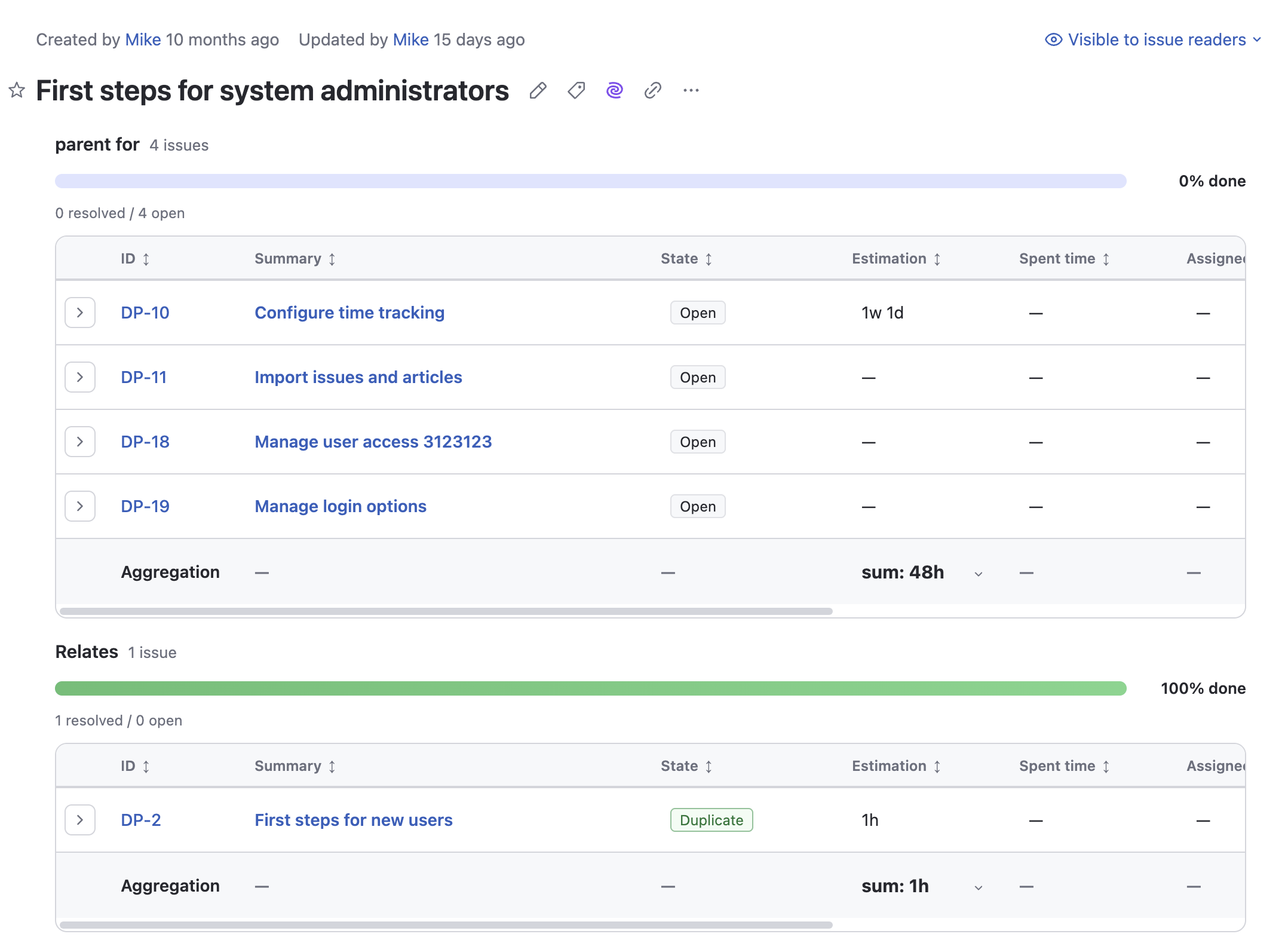
Open any issue and look for the Linked Issues Pro panel above the activity stream.
The panel reads:
- the effective linked-issue settings for the current project
- your saved view preferences for that project
- the linked issues of the current issue
If the app is not active, the panel shows a subscription-required or loading state instead of data.
Understand the Main Views
The issue panel supports two table layouts.
Grouped by Link Type
In grouped mode, linked issues are separated into sections such as:
parent forsubtask ofduplicatesrelates to
Use this mode when relation type matters more than scanning every linked issue in one list.
Flat Table
In flat mode, all linked issues are shown in one table. The first column displays the relation label inline next to the expander so that you still know what type of relationship each row represents.
Use this mode when you want one sortable, compact table.
Select Visible Columns
Use Select columns in the issue panel toolbar to show or hide fields that are already enabled by the current configuration.
This is useful when:
- you want a compact troubleshooting view
- you want to focus only on planning fields
- you need more room for summaries or custom fields
Your column visibility preference is saved per user and per project.
Use View Preferences
The View preferences popup lets you adjust how the table behaves without changing the project configuration.
Available options include:
- Group by links
- Hide parent backlinks
- Show aggregation row
- Density
Hide Parent Backlinks
When nested linked issues are enabled, expanding a row often reveals a backlink to the parent issue you already see one level higher. Enable Hide parent backlinks to remove this duplicate context.
Density
Choose the density that fits your work style:
XSSMLXL
Lower densities fit more information on screen. Higher densities give more breathing room.
Work with Nested Linked Issues
If the project configuration enables nested linked issues, rows with linked children can be expanded.
Nested behavior:
- supports up to two levels deep
- groups child rows by link type
- can hide backlinks to the parent issue
- shows an empty state when the expanded issue has no child links after filtering
Use this when you need to inspect dependency chains without opening multiple issue pages.
Inline Edit Supported Fields
Supported fields can be edited directly in the table. Typical examples include:
StateAssignee- supported custom enum, user, period, and numeric fields
Inline editing is controlled by the current global or project configuration. If a field is visible but not editable, it will render as read-only.
Read and Change Aggregates
If one or more fields are marked as aggregate-enabled in the configuration, the table can show an Aggregation row at the bottom.
Aggregate-enabled fields support:
sumaverageminmaxmedian
The visible aggregate function can be changed inline per column from the aggregation row. The chosen function is saved in your user preferences for the current project.
Understand Progress and Status Cues
Depending on configuration, the issue panel can also show:
- a completion progress bar
- relation labels in flat view
- expand controls for nested rows
- avatars for user fields
These cues are designed to make linked issue work faster without switching to another screen.
More Options Menu
The issue panel includes More options. From there, users can open:
- What's new
- Configuration
- Documentation
- Contact us
- Discover Appfero apps
Troubleshooting
I cannot edit a field
Possible reasons:
- the field is not enabled for inline editing in configuration
- the field type is not supported for inline editing
- you do not have permission to update that field in YouTrack
I enabled flat view but still need to know the relation type
In flat mode, the relation label is displayed in the first column next to the expander.
Expanding a row shows very little new information
Turn on Hide parent backlinks in View preferences to remove the backlink to the already visible parent row.
I do not see the aggregation row
Check these points:
- Show aggregation row is enabled in view preferences
- the current configuration has at least one aggregate-enabled field
- the selected columns currently include an aggregate-enabled field
Need a cross-scope view? Continue with the Reporting Guide.