

Admin Guide
This guide helps YouTrack administrators activate Advanced Linked Issues & Traceability, manage the subscription lifecycle, and define the linked-issue defaults that all projects inherit by default.
Installation
- Install the app from the JetBrains Marketplace vendor page or from your Appfero product link.
- In YouTrack, open Administration -> Integrations -> Advanced Linked Issues & Traceability.
- Review the included 30-day trial or activate the subscription.
- Review the global linked-issue defaults and save your preferred setup.
Included 30-Day Trial
The 30-day trial is included after installation. The administration page shows the current access state in the subscription panel at the top.
To review access:
- Open Administration -> Integrations -> Advanced Linked Issues & Traceability.
- Check the subscription panel.
- Confirm that the installation is active.
- Continue with the global defaults below the subscription section.
Payment details are not required during the trial period.
Manage Subscription Status
The administration page includes the Appfero subscription panel. Use it to review:
- current lifecycle status
- active plan
- quantity
- next billing date
- checkout action
- subscription refresh
- customer portal actions when available
Offline Activation
The app also supports offline activation for on-premise or air-gapped environments. If your installation cannot use the standard online flow, contact support@appfero.com for an offline activation token.
Configure Global Linked Issue Defaults
The global defaults define how linked issues appear in projects that do not enable project-level overrides.
Group Rows by Link Type
Enable Group rows by link type when you want linked issues grouped into sections such as parent for, relates to, or duplicates.
Disable it when you prefer one flat table.
Show Completion Progress Bar
Enable Show completion progress bar if you want a quick resolved-versus-open summary above the linked issue table.
Enable Nested Linked Issues
Enable Nested linked issues to allow users to expand linked issues up to two levels deep from the issue panel.
Visible Link Types
Use Visible link types to restrict which relationships should appear in the issue panel table.
- Leave the selector empty to include all link types
- Select specific relation types when you want to simplify the view for all projects
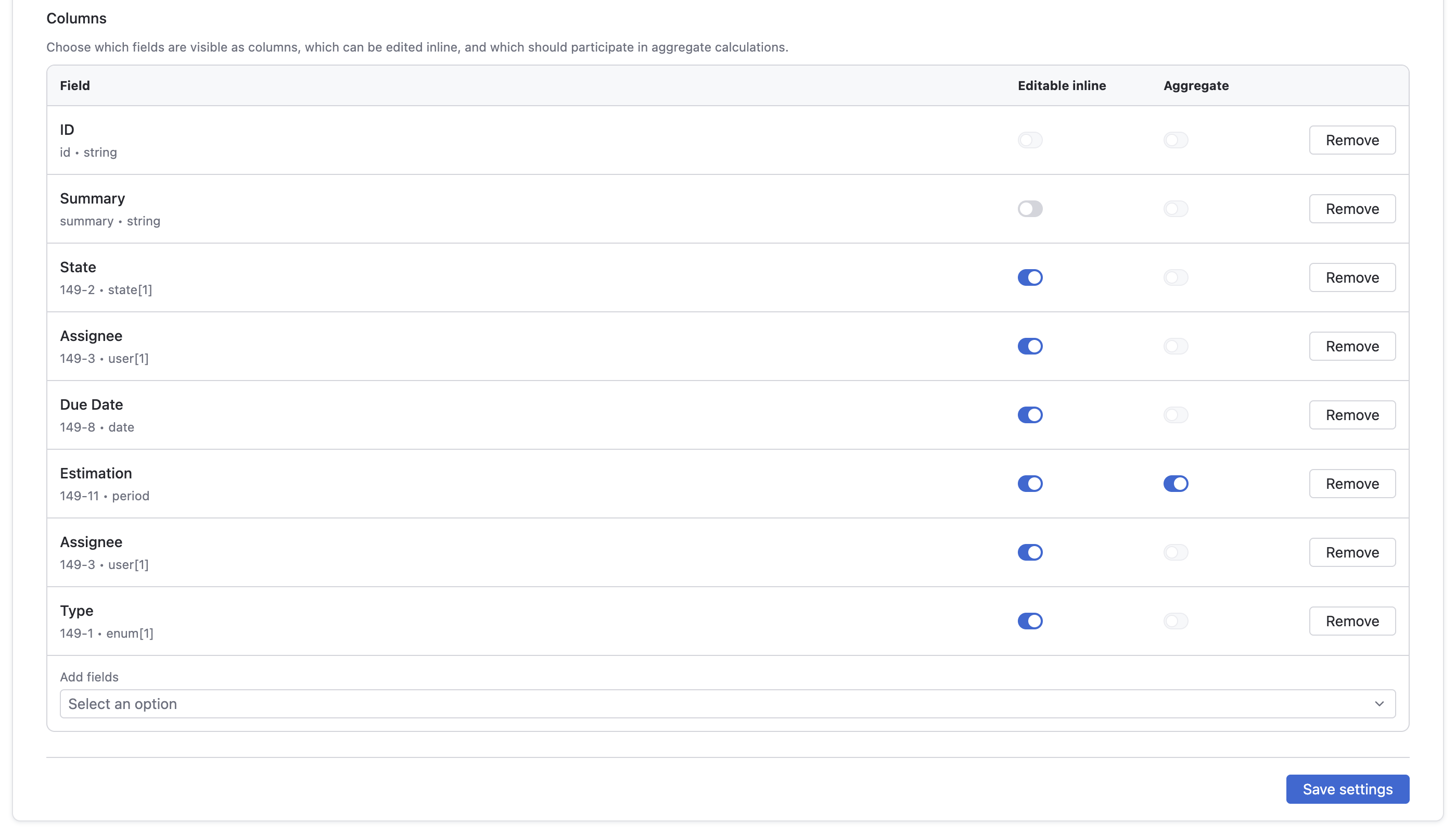
Columns
The Columns table controls which issue fields appear in the issue panel and how they behave.
For each selected field you can configure:
- whether the field is visible
- whether it is editable inline
- whether it participates in aggregate calculations
The column order in the configuration table is the same order used in the issue panel.
Default Aggregate Function
Choose the default aggregate function applied to aggregate-enabled fields:
sumaverageminmaxmedian
Users can change the aggregate function per column directly from the issue panel, but the global default is the starting point.
More Options Menu
The administration page includes More options. From there, admins can open:
- What's new
- Documentation
- Contact us
- Update available, when a newer version is published
Recommended Rollout Order
For a clean rollout:
- Activate the trial or subscription.
- Decide whether linked issues should open grouped or flat by default.
- Choose the default visible link types.
- Configure the default columns, inline editing, and aggregates.
- Enable nested linked issues only if teams need second-level dependency browsing.
- Ask project owners to review the Project Settings Guide if some projects need overrides.
Troubleshooting
Settings cannot be saved
- Refresh the page and try again.
- Confirm the installation is active.
- Check that you are in the administration view, not project settings.
No fields are available in the columns selector
The app reads fields from YouTrack metadata. If the field discovery request fails or returns no supported fields, refresh the page and verify that the installation can read project fields.
Users cannot see the issue panel
Check these points:
- the trial or subscription is active
- the app is installed correctly
- the issue belongs to a project where the app is available
- the project settings did not disable required link types
Next step: Continue with the Project Settings Guide or the Issue Panel Guide.