

Issue Panel Guide
This guide shows how to inspect Time in Status data for one issue directly from the issue page in YouTrack.
What the Issue Panel Is For
Use the issue panel when you want to understand one issue's status journey without building a full report first.
It is especially useful when you need to answer questions like:
- How long did this issue stay in each status?
- When did the status change?
- Who changed it?
- Is the delay spread across many re-entries or concentrated in one long stay?
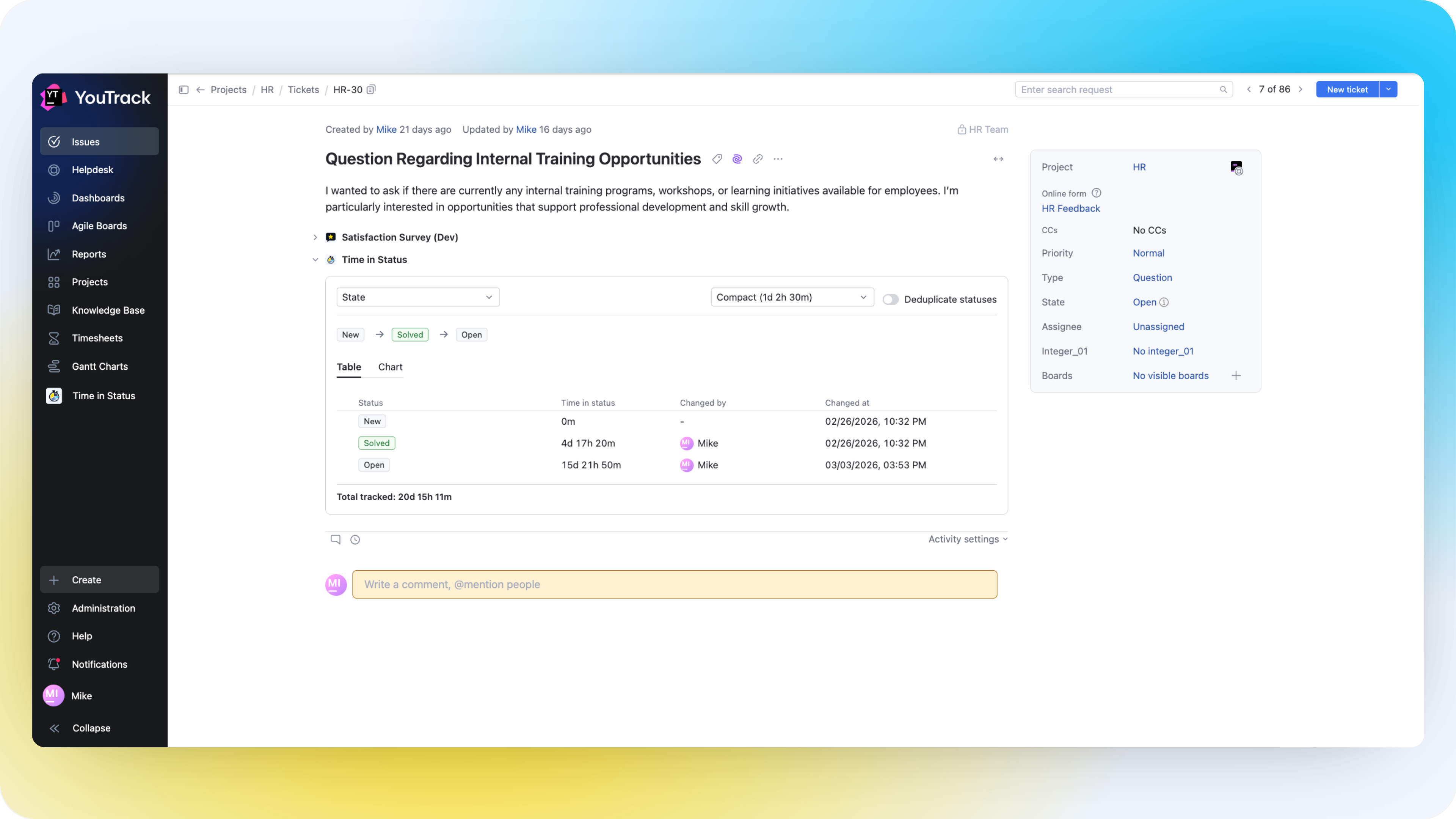
Open the Panel
Open any issue that belongs to the scope where the app is available and locate the Time in Status panel above the activity stream.
If there is no active trial or subscription, the panel shows a subscription-required message instead of report data.
Choose the Tracked Field
The panel includes a Field selector. Use it when the issue contains more than one state-type field and you want to switch the calculation to another workflow field.
The initial selection comes from the installation default configured by the administrator.
Choose the Time Format
The panel supports the same duration formats as the main reporting experience:
- Compact
- Verbose
- Days
- Hours
- Minutes
- Seconds
Use a compact or verbose format for readable everyday work, and use numeric formats when you want easier manual comparison.
Understand the Status Flow
Above the detailed output, the panel shows a flow view of status transitions for the selected field.
Use this flow to understand:
- the order in which the issue moved through statuses
- where the issue re-entered the same status
- how often the issue bounced back in the workflow
Use Detailed vs Deduplicated View
The panel includes a Deduplicate statuses toggle.
When Deduplication Is Off
The table shows each tracked status entry separately.
This is best when you need to see:
- every status re-entry
- the exact changed time for each step
- who performed the change
When Deduplication Is On
The panel aggregates repeated visits to the same status into a single total.
This is best when you need to answer:
- how much total time the issue spent in a status
- which statuses consumed the most time overall
- whether the issue repeatedly returned to the same step
Switch Between Table and Chart
The panel supports two views:
- Table
- Chart
Table View
The table shows:
- Status
- Time in status
- Changed by
- Changed at
Use the table when investigating an issue in detail.
Chart View
The chart view shows the aggregated time spent in each status.
You can switch between:
- Bar
- Column
- Pie
Use the chart when you want a quick visual answer to where the issue spent most of its time.
Read the Total Tracked Value
At the bottom of the panel, the app shows Total tracked.
This value summarizes the tracked time across all included status entries for the selected field.
Practical Use Cases
Escalation Review
Open a delayed issue and check whether the delay came from one long waiting period or from repeated back-and-forth transitions.
Post-Incident Analysis
Use the detailed table to identify when the issue changed status and who moved it during a problematic flow.
Workflow Tuning
Compare several issues in the same project and look for statuses that repeatedly dominate the total tracked time.
Troubleshooting
No tracked status history found
This usually means one of the following:
- the selected field does not contain tracked state history for that issue
- the issue never entered the selected state field in a way the app can calculate
- the wrong state field is selected
Try switching the tracked field first.
No state fields available for this issue
The panel only works with state-type fields. If the field selector is empty, the issue does not expose a compatible state field for the app to use.
The numbers change after enabling deduplication
That is expected. Deduplication changes the presentation from every visit to each status into one aggregated total per status.
Need a wider view? Go back to the Reporting Guide to analyze a full set of issues.