

Admin Guide
This guide helps YouTrack administrators start using Time in Status, manage the subscription lifecycle, and configure the default reporting behavior for the whole installation.
Installation
- Install the application from the JetBrains Marketplace
- In YouTrack, go to Administration -> Integrations -> Time in Status
- Review the included 30-day trial or activate a subscription
- After the app becomes active, configure the default state field and time format
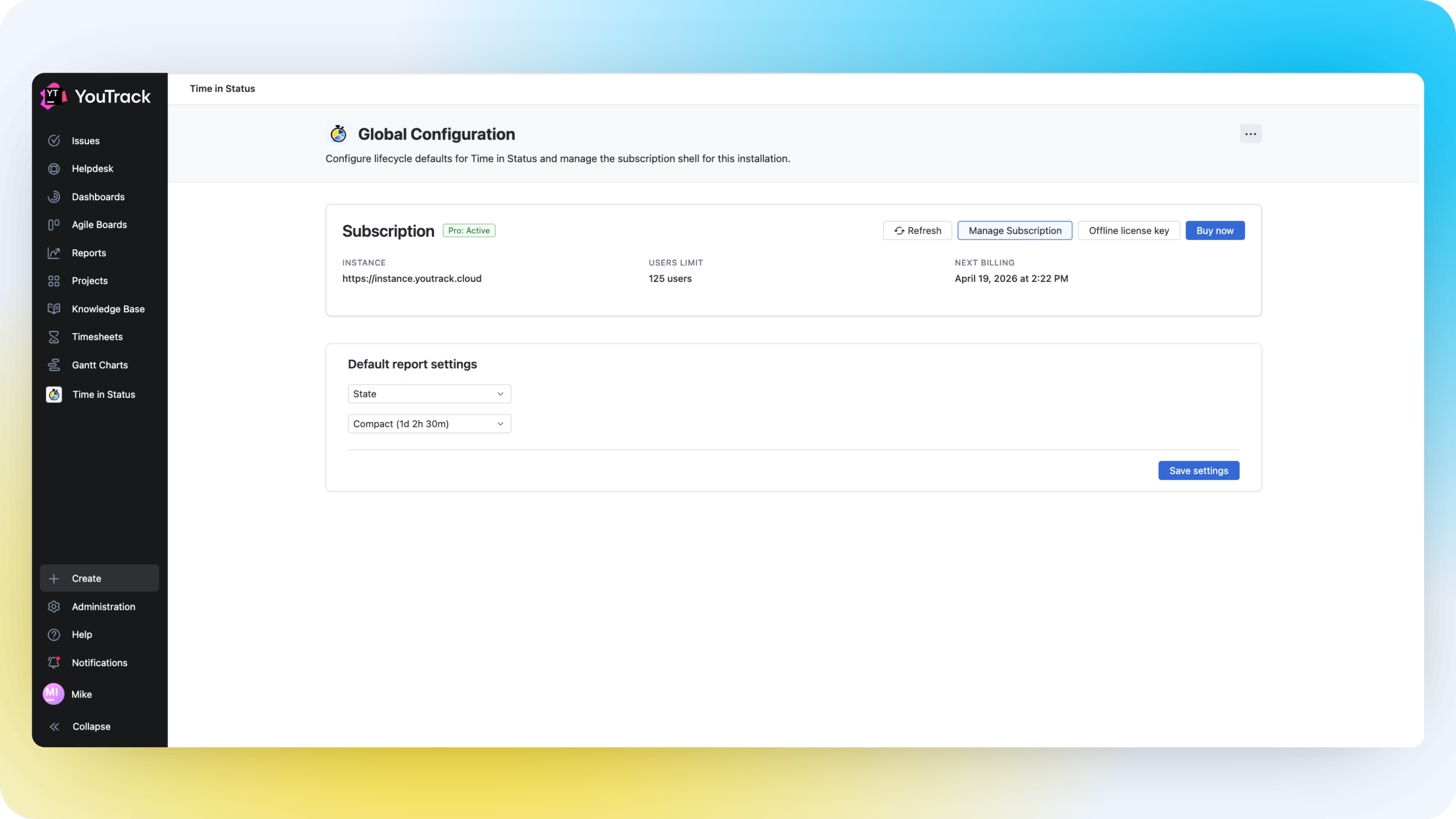
Included 30-Day Trial
The 30-day trial is included after installation. The administration page shows the current access state in the subscription panel.
To review access:
- Open Administration -> Integrations -> Time in Status
- Check the subscription panel
- Confirm that the installation is active
- Continue with the default settings configuration
Payment details are not required during the trial period.
Manage Subscription Status
The administration page includes the built-in subscription panel. Use it to review the current lifecycle state of the installation.
The panel can show:
- Status: for example active or expired
- Current plan
- Quantity
- Next billing date
- Manual refresh
- Manage subscription
- a purchase action such as Buy now
What Happens Without an Active Subscription
If there is no active trial or subscription:
- the reporting widgets show a subscription-required state
- the global settings card stays visible but is locked
- users must activate a trial or subscription before using the app
Configure Default Report Settings
Administrators can define two installation-wide defaults:
- Default state field
- Default duration format
These defaults are used as the initial selection in the reporting experience and in the issue panel.
Choose the Default State Field
Use this setting when your YouTrack instance has more than one state-type field and you want the app to open with the correct workflow field by default.
To configure it:
- Open the Default report settings card
- In Default state field, choose the state field that should be tracked by default
- Click Save settings
Choose the Default Duration Format
Time in Status supports the following duration formats:
- Compact:
1d 2h 30m - Verbose:
1 day 2 hours 30 minutes - Days
- Hours
- Minutes
- Seconds
To configure it:
- Open Default duration format
- Choose the format your team prefers
- Click Save settings
More Options Menu
The administration page also includes a More options menu. From there, administrators can open:
- What's new
- Documentation
- Contact us
- Update available when a newer app version is available
Recommended Setup Workflow
For a clean first rollout, use this order:
- Confirm the included 30-day trial is active
- Confirm that the subscription panel shows the installation as active
- Set the correct default state field
- Choose the preferred duration format
- Ask report users to open the Reporting Guide
Troubleshooting
Settings cannot be saved
- Confirm that you are using the administration page, not a regular user view
- Refresh the page and try again
- Check whether the subscription is active
No state field is available
Time in Status reads fields of the YouTrack state type. If the selector is empty, verify that the relevant projects actually use a state field that the app can read.
The trial does not start
- Refresh the page and try again
- Verify that the instance can complete the standard online lifecycle flow
- If the problem persists, contact support@appfero.com
Next step: Continue with the Reporting Guide.