

Moderator Guide
This guide helps team members create and manage Planning Poker estimation sessions as moderators.
👨💼 What is a Moderator?
A moderator is a team member who:
- Creates new Planning Poker sessions
- Manages session settings (issues, participants, decks, timers)
- Controls session flow (reveal cards, save estimates, start over)
- Finishes sessions when estimation is complete
- Counts toward subscription limits (see Subscription for details)
Moderators are typically Scrum Masters, Product Owners, or team leads who facilitate estimation sessions.
🚀 Creating a Session
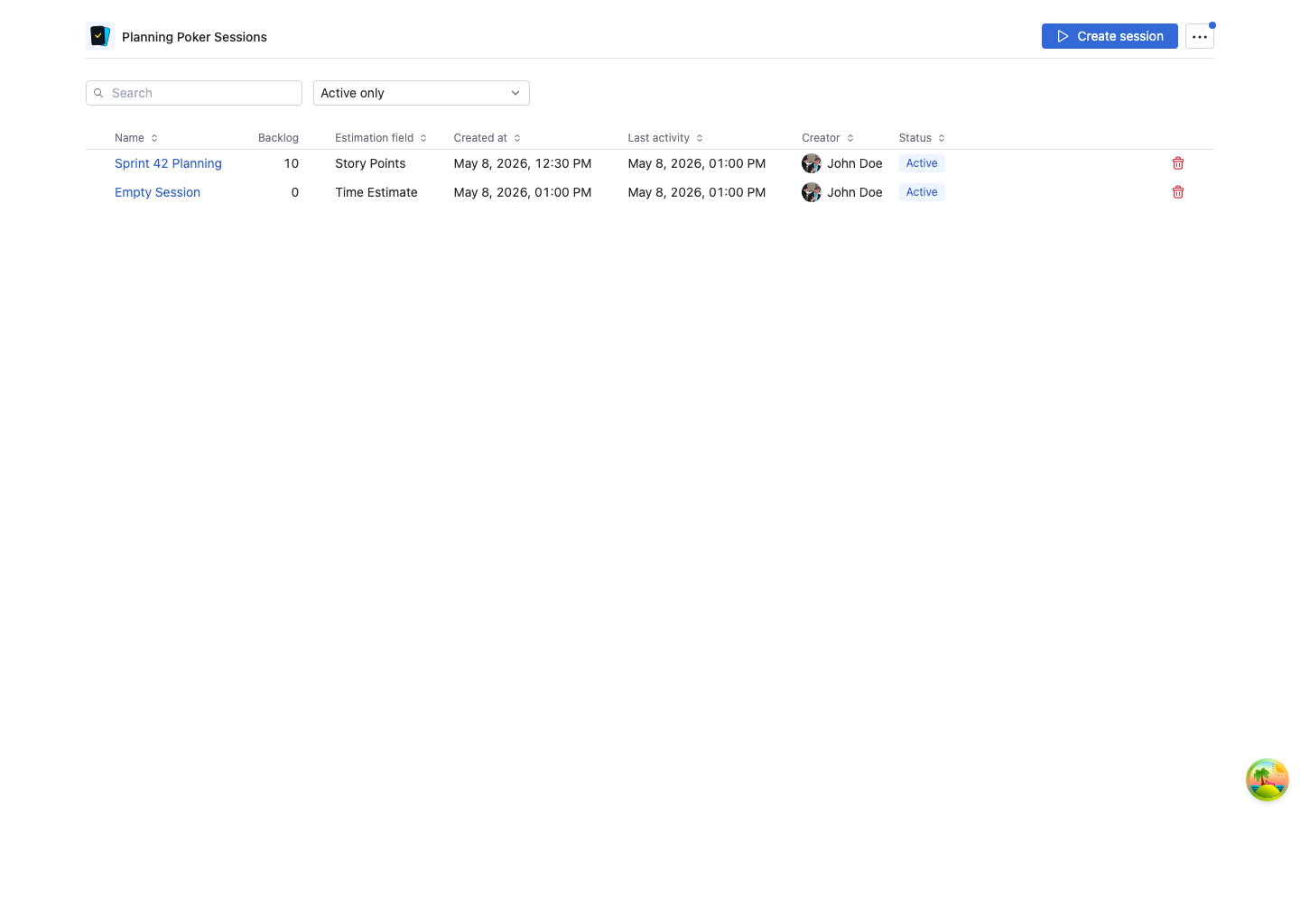
Step 1: Navigate to Planning Poker
- Click Planning Poker in the YouTrack main menu
- Click "Create New Session" button
Step 2: Configure Session Settings
You'll see a session creation form with the following options:
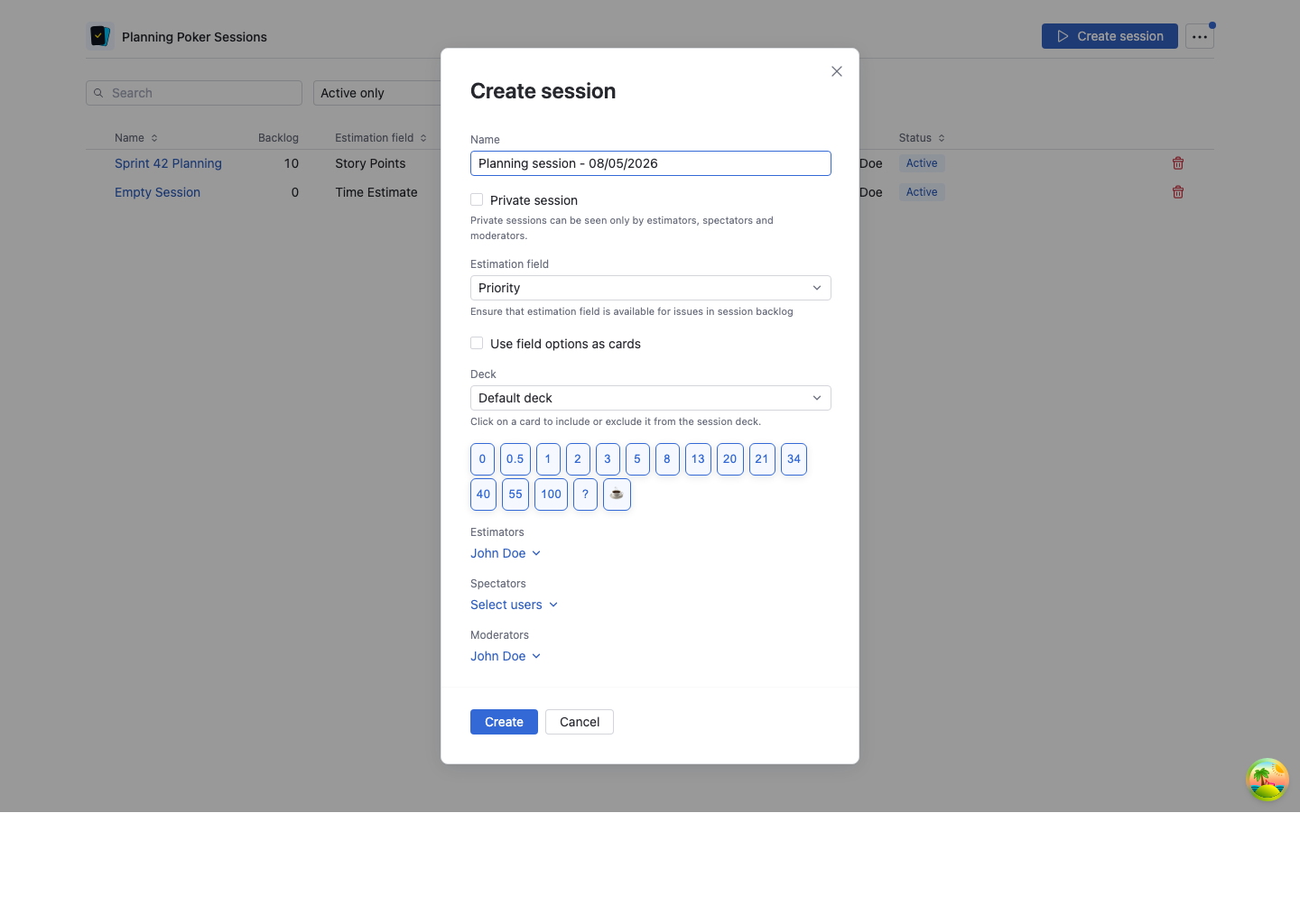
Session Name
- Required: Give your session a descriptive name
- Examples: "Sprint 23 Backlog Estimation", "Q1 Feature Planning", "Bug Triage Estimation"
- Tip: Use names that help participants identify the session purpose
Session Visibility (paid plans only)
Choose session visibility:
- Public: All users can see the session in the session list
- Private: Only participants (moderators, estimators, spectators) can see the session
Edit Votes After Reveal (Pro and Enterprise)
Pro and Enterprise plans include an additional session option:
- Disabled by Default: The setting must be enabled explicitly when creating or editing a session
- Post-Reveal Vote Changes: Estimators can update their cards after reveal if discussion uncovers new information
- Better for Fast Follow-ups: Useful when the team wants a second pass without clearing the whole round
Select Estimation Field
Choose where estimates will be saved in YouTrack:
- Integer Fields - Any integer custom field
- Float Fields - For decimal estimates (0.5, 1.5, 2.5)
- Period Fields - For time-based estimates (hours, days)
- Enum Fields (single or multi-value) - You can use enum options as cards
Enum Fields as Cards
When you select an enum field, the application can optionally use the enum's options as estimation cards. This is perfect for custom scales like T-Shirt sizes (XS, S, M, L, XL).
Select Session Deck
Choose a card deck for estimation:
- Default Deck: 0, 0.5, 1, 2, 3, 5, 8, 13, 20, 21, 34, 40, 55, 100, ?, ☕
- Standard Fibonacci: 0, 1, 2, 3, 5, 8, 13, 21, 34, 55, 89, ?, ☕
- Modified Fibonacci: 0, 1, 2, 3, 5, 8, 13, 21, 40, 80, 100, ?, ☕
- Power of 2: 0, 1, 2, 4, 8, 16, 32, 64, 128, ?, ☕
- Natural Numbers: 0-20, ?, ☕
Customize Your Deck: Click on individual cards to exclude them from the session. Excluded cards appear grayed out and won't be available for voting.
Deck Customization
If your team doesn't use certain values (like 0.5 or 100), click on those cards to remove them. This simplifies the voting interface for estimators.
Assign Participants
Assign team members to roles:
- Moderators: Can create sessions and control session flow (you're automatically added)
- Estimators: Participate in voting
- Spectators: Observe without voting
Step 3: Create Session
- Review all settings
- Click "Create Session" button
- To see your session, click on the session name in the session list
Step 4: Invite Participants
Participants can always join a visible session from the Planning Poker session list. On YouTrack 2026.1.12024 or later, you can also share a direct session invitation:
- Open the session
- Use the copy action next to the session title to copy the direct session link
- Or use Share session to copy a ready-to-send invitation message with the session name and link
- Send the link or message to the moderators, estimators, and spectators assigned to the session
The same copy action is also available from the session list. Direct links open the Planning Poker app directly on the session for users who have access.
::: note YouTrack Version Requirement Direct session links, invitation messages, and invitation alerts use YouTrack's app navigation API. These controls are shown only when the YouTrack host supports that API, released in build 2026.1.12024. On older YouTrack versions, invite participants by assigning them to the session and asking them to open it from the Planning Poker session list. :::
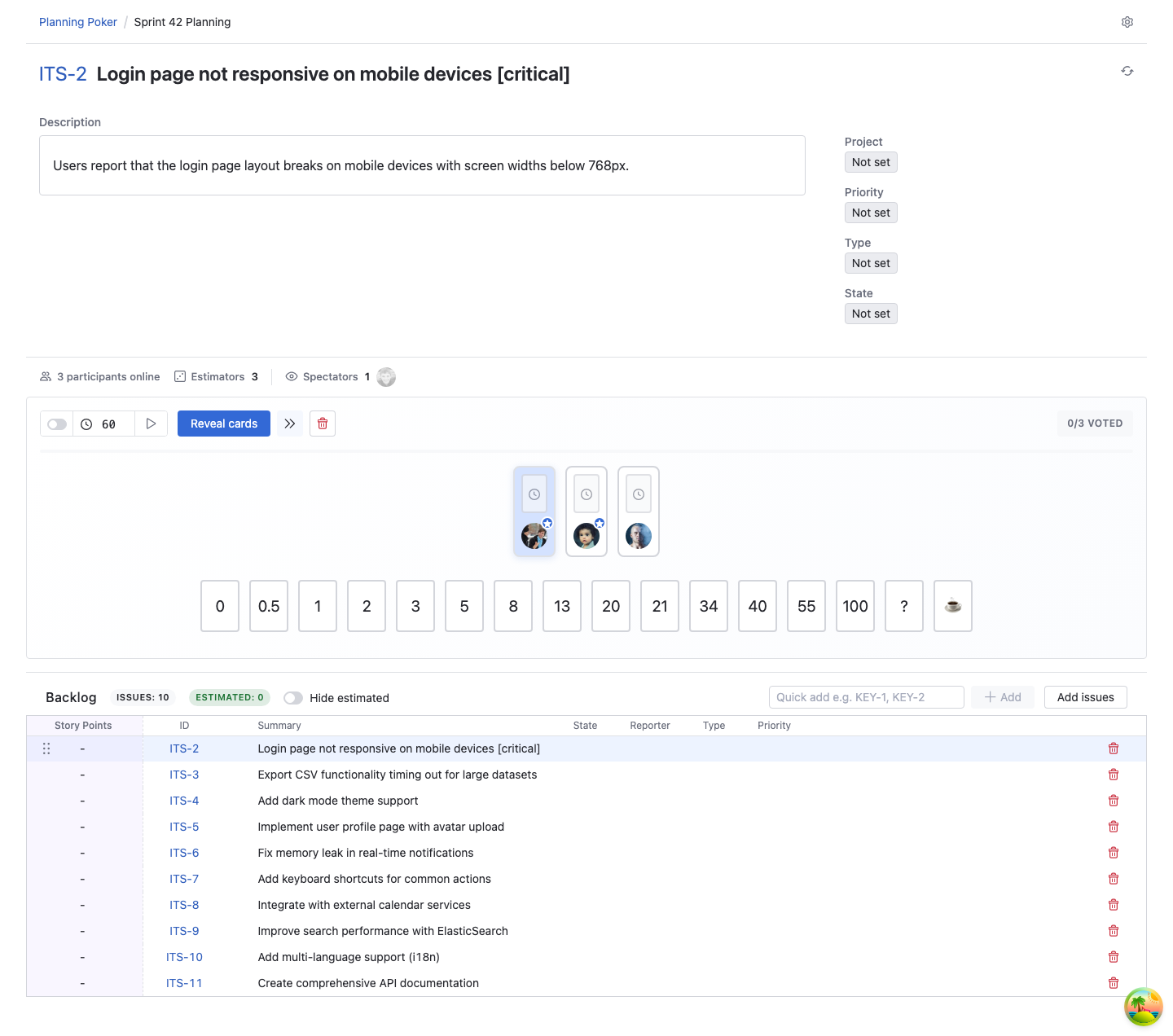
Step 5: Add Issues to Backlog
After creating the session, add issues from YouTrack to estimate:
- Click "Add Issues" button on the session page
- Search or filter issues from your YouTrack backlog
- Select issues to add to the session
- Issues appear in the session backlog list
- Alternatively, use the quick add feature by typing issue IDs separated by commas
Tips:
- You can add issues at any time during the session
- Issues can be reordered by dragging and dropping
- You can remove issues that are no longer needed
🎮 Managing an Active Session
Session Interface Overview
As a moderator, you'll see additional controls not available to estimators:
Moderator Controls:
- Backlog Management: Add/remove issues from the backlog
- Issue Navigation: Move between issues in the backlog
- Reveal Cards: Show all votes simultaneously
- Save Estimate: Save the final consensus estimate to YouTrack
- Start Over: Reset votes for the current issue
- Timer Controls: Start or reset the estimation timer
- Session Management: Manage participants, finish session
Facilitating Estimation
1. Select the First Issue
- The first issue in your backlog is automatically selected
- Issue details appear in the main panel
- Estimators can now vote
2. Facilitate Discussion
- Encourage team to discuss the issue
- Clarify requirements and acceptance criteria
- Answer questions about scope or technical approach
- Optionally start a timer to keep discussion focused
- When timer expires, all votes are revealed
Timer Options:
- Auto-start: Timer starts automatically when issue is selected
- Manual start: You control when the timer starts
- Duration: Set any duration in seconds (e.g., 120 seconds, 300 seconds)
Using Timers Effectively
Timers help keep discussions focused, but don't be too rigid. If the team needs more time for important discussion extend the timer.
3. Monitor Voting Progress
Watch the estimators status panel to see:
- Who has voted (checkmark indicator)
- Who's still thinking
- Who's online
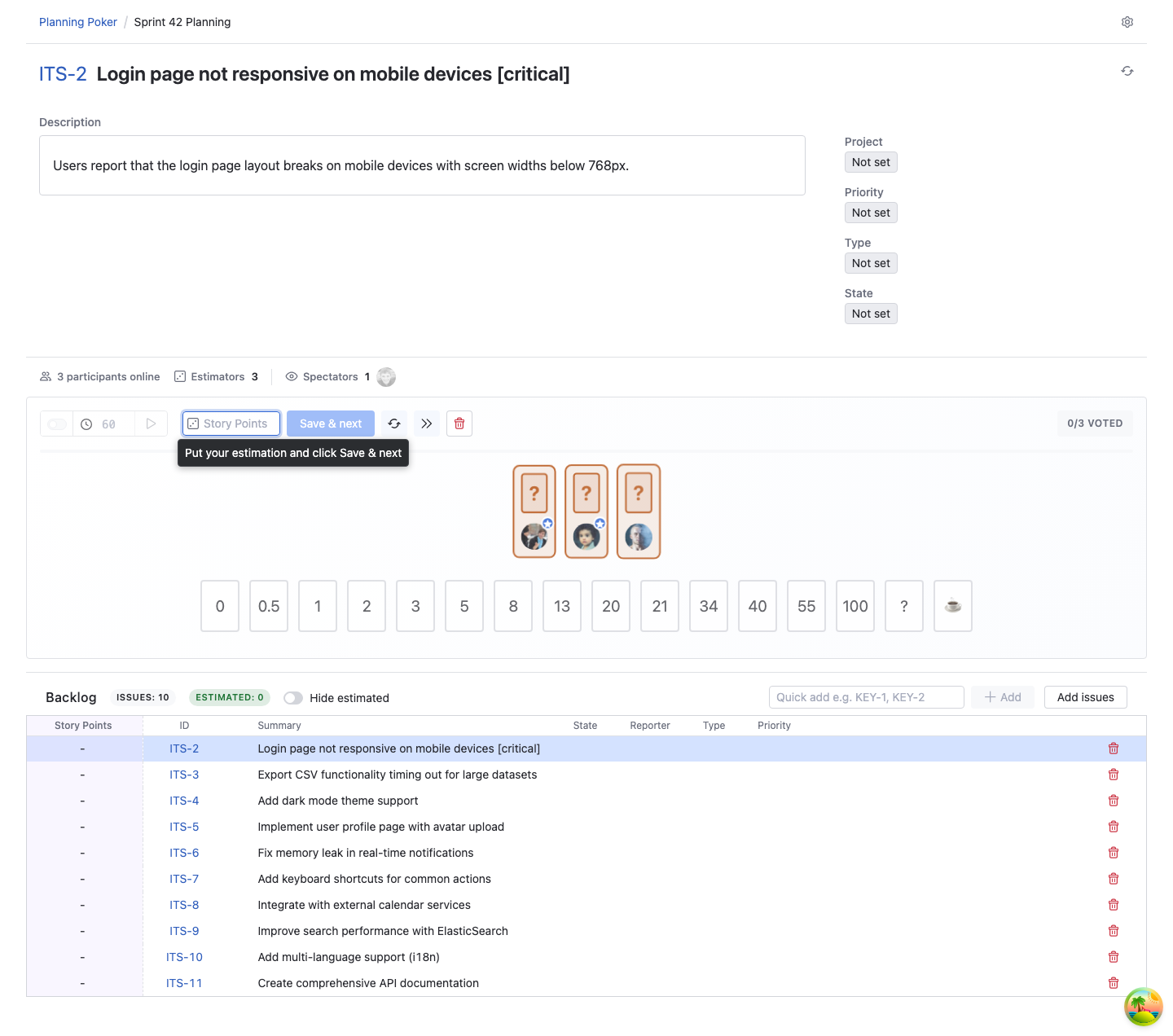
4. Reveal Cards
Once all estimators have voted:
- Click "Reveal Cards" button
- All votes are displayed simultaneously
- Estimators can see everyone's estimates
- If timer was running, it stops automatically and cards are revealed
What to Look For:
- Consensus: Most estimates are similar (e.g., 5, 5, 8)
- Divergence: Estimates vary widely (e.g., 2, 8, 20)
5. Facilitate Consensus Discussion
If Estimates Align:
- Quick consensus is likely
- Ask if everyone agrees on the most common value
- Save the estimate and move to the next issue
If Estimates Diverge:
- Ask team members with highest and lowest estimates to explain their reasoning
- Facilitate discussion about assumptions, risks, or technical approach
- Look for new information that changes understanding
- Consider re-estimating after discussion
Divergent Estimates Are Valuable
Wide variation in estimates often reveals important information about the task. Don't rush to consensus—let the discussion surface valuable insights.
Update the Issue Context During Discussion
On Advanced and Enterprise plans, the issue details panel can also be used as a live collaboration surface:
- Edit Description Inline: Update the issue description when the team clarifies scope or acceptance criteria
- Review Existing Comments: Expand the comments section under the description to see prior discussion
- Add New Comments: Capture decisions or follow-up notes directly on the issue while estimating
6. Save the Estimate
Once the team reaches consensus:
- Select the final estimate value
- Click "Save & next" button
- The estimate is automatically saved to the selected YouTrack field
- The issue is marked as estimated in session backlog
- The next issue is automatically selected. You can also click "Next Issue" button to move to the next issue in the backlog at any time
Consensus vs. Compromise
Aim for genuine consensus where everyone agrees, not just averaging numbers. If the team can't agree, it might indicate the issue needs more refinement before estimation.
Additional Moderator Features
Start Over
If the team wants to re-estimate an issue:
- Click "Start Over" button
- All votes for the current issue are cleared
- Estimators can vote again
Use Cases:
- New information emerged during discussion
- Team wants to reconsider after consensus discussion
- Accidental reveal before everyone voted
When to use Start Over vs. Edit Votes After Reveal
If your session has Edit votes after reveal enabled, use it for quick post-reveal adjustments. Use Start over when you want to reset the whole round and hide all cards again.
Add Issues During Session
You can add issues at any time:
- Click "Add Issues" button
- Search and select issues from YouTrack
- New issues are added to the backlog
- Alternatively, you can add issues by typing issue IDs in quick add field and pressing Enter
Remove Issues
Remove issues that are no longer needed:
- Find the issue in the backlog list
- Click the remove icon
- Issue is removed from the session (estimates are preserved if already saved)
- Alternatively, you can remove current issue by clicking the remove icon in the moderator panel
Reorder Issues
Change the order of issues in the backlog:
- Drag and drop issues in the backlog list
- Order is updated for all participants
Hide Estimated Issues
Toggle "Hide Estimated" to:
- On: Hide issues that have been estimated (cleaner view)
- Off: Show all issues including estimated ones
Manage Participants
During the session, you can:
- Add Participants: Invite additional estimators or spectators
- Remove Participants: Remove participants who are no longer needed
- Change Roles: Convert estimators to spectators or vice versa
Moderator Changes
You cannot remove yourself as a moderator while the session is active. At least one moderator must remain in the session.
🏁 Finishing a Session
When last issue is estimated:
- Click "Save & finish" button
- Confirm you want to finish the session
- Session is marked as finished and moved to the finished sessions list
What Happens:
- Session is no longer active
- Participants can no longer vote
- Session remains visible in the finished sessions list
- All estimates are preserved in YouTrack
Session History
Finished sessions are preserved for reference. You can view past sessions to see what was estimated and when.
📊 Session Management
Viewing Active Sessions
Navigate to Planning Poker to see:
- Active Sessions: Sessions that are currently active
- Finished Sessions: Completed sessions
- Search bar to find sessions
- Sort by any column
- By clicking "Remove" icon you can remove the session
Remove Session
Removing a session is possible only if the user is moderator of the session.
🎯 Best Practices for Moderators
Before the Session
- Prepare the Backlog: Review and refine issues before the session
- Set Clear Goals: Know what you want to estimate and why
- Invite Participants: Ensure all necessary team members are assigned to the session; on YouTrack 2026.1.12024 or later, share the direct session link or invitation message
- Choose the Right Deck: Select a deck that matches your team's estimation scale
During the Session
- Set the Tone: Create a safe environment for honest estimation
- Facilitate, Don't Dominate: Guide discussion without imposing your opinion
- Keep It Moving: Don't let discussions drag on too long
- Encourage Participation: Ensure quieter team members share their perspectives
- Focus on Learning: Use divergent estimates as learning opportunities
- Respect the Timer: Use timers to keep discussions focused, but be flexible
Facilitating Discussion
- Start with Context: Briefly explain the issue before voting
- Encourage Questions: Create space for clarification before voting
- Ask for Reasoning: When estimates diverge, ask "why?" not "who's right?"
- Look for Patterns: Notice if certain types of issues consistently have divergent estimates
- Build Consensus: Help the team reach agreement, don't force it
Common Moderator Mistakes to Avoid
❌ Voting as a Moderator: Moderators can vote, but be careful not to anchor the team ❌ Rushing Consensus: Don't push for quick agreement when discussion is valuable ❌ Ignoring Outliers: Pay attention to extreme estimates—they often reveal important insights ❌ Over-explaining: Let the team discuss; don't lecture about the "right" estimate ❌ Skipping Discussion: Even when estimates align, briefly confirm everyone's reasoning
🔧 Troubleshooting
Estimates Not Saving
Possible causes:
- Field doesn't exist or was deleted
- Insufficient permissions to update field
- Field type mismatch
- Field not added to the project
Solutions:
- Verify field exists in YouTrack
- Check permissions for field updates
- Ensure field type matches session configuration
- Try creating a new session with a different field
- Verify field is added to the project
Need Help? Contact support@appfero.com or visit our FAQ page.