

Subscription
Customer Satisfaction (CSAT) includes subscription management inside YouTrack. Administrators can review the current access state, refresh it when needed, open subscription management, and activate offline access where supported.
This page focuses on what administrators do inside YouTrack after the app is installed.
Review Access
To check whether the app is available:
- Install or open Customer Satisfaction (CSAT) from the JetBrains Marketplace.
- Open Administration -> Apps -> Customer Satisfaction (CSAT).
- Review the subscription panel.
- Confirm that the installation is active.
- Continue with global settings and project settings.
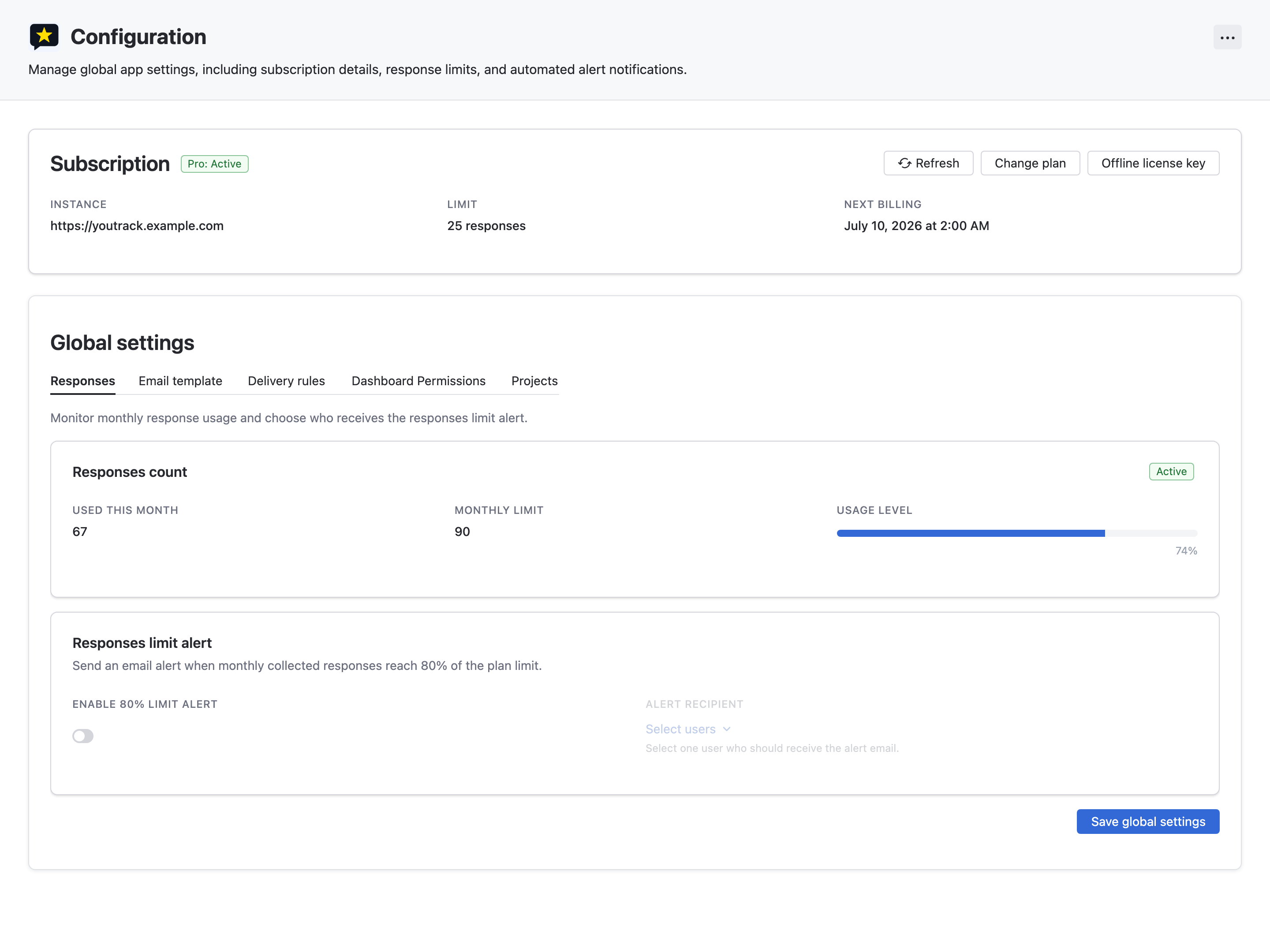
The panel shows the current state for the YouTrack installation. Project administrators and support agents do not need to manage access from issue panels or dashboard widgets.
Manage Access
From the global administration page, administrators can:
- review the current access status,
- refresh subscription status manually,
- open subscription management,
- start checkout or change the current plan,
- activate offline access where supported.
Use manual refresh after a checkout, plan change, account change, or support action if YouTrack does not show the expected state.
Response Usage
CSAT subscriptions are usage-aware. The administration page shows the current response usage for the billing period and indicates when the limit is approaching or reached.
When the current response limit is reached:
- new survey sending and new response collection are paused,
- existing configuration remains available,
- historical responses and dashboards remain accessible,
- collection resumes after the next billing reset or after access is upgraded.
Offline Activation
Offline activation is available for supported on-premise or restricted-network installations.
To use offline activation:
- Contact support@appfero.com.
- Provide the information requested by Appfero support.
- Open the CSAT administration page in YouTrack.
- Use the offline activation action in the subscription panel.
- Paste the provided activation code.
- Confirm that the access status updates.
What Users See When Access Is Inactive
When CSAT does not have active access:
- administration and project settings show that access is required,
- new survey sending and response collection are not available,
- dashboard widgets may show an access notice instead of report data,
- existing configuration and historical data are preserved.
Restore active access to resume normal feedback collection.
Troubleshooting
Status did not update after checkout or a support action
- Return to the CSAT administration page.
- Use the manual refresh action in the subscription panel.
- Wait a few seconds and refresh the page.
- Contact support if the expected status still does not appear.
The app says access is required
- Confirm the current state in the global administration page.
- Confirm that the YouTrack instance has internet access if you use online validation.
- Ask an administrator to refresh the subscription status.
Subscription details look wrong
Contact support with your YouTrack instance URL and the details shown in the administration page.
Need Help? Contact support@appfero.com or use the support form.