

Project Settings Guide
This guide explains how project owners configure Customer Satisfaction (CSAT) surveys for individual YouTrack projects. All settings are accessed through the project-level settings widget.
Accessing Project Settings
- Open the project in YouTrack
- Navigate to Project Settings → Customer Satisfaction (CSAT)
- The configuration panel loads with tabs for General, Mail, Custom Fields, and Delivery Rules
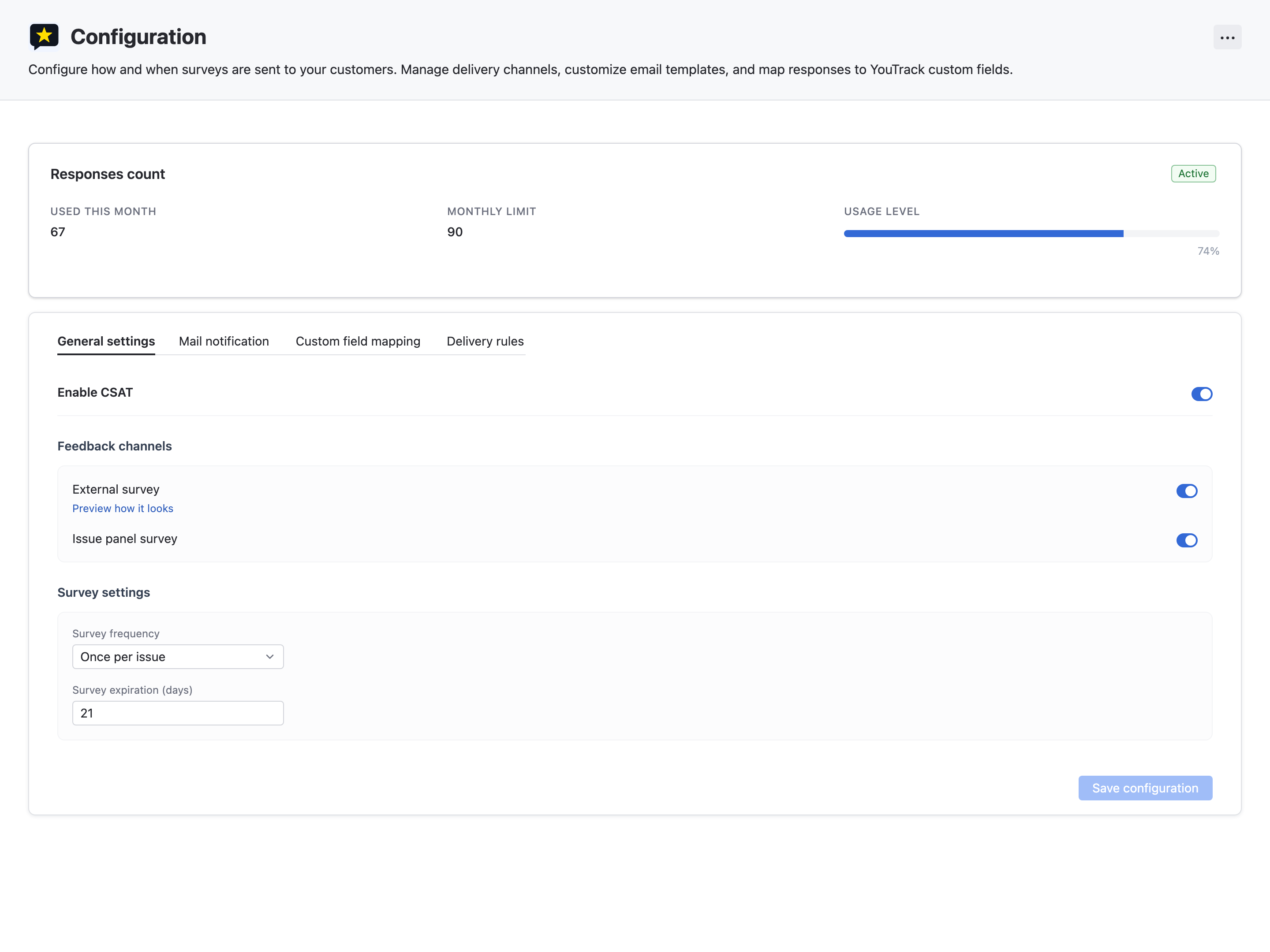
Responses Usage
A Responses Usage card is displayed at the top of the project settings, showing the current month's response count relative to the plan limit. This is the same data shown in the global admin panel.
General Tab
The General tab controls the core survey behavior for the project.
Enable CSAT
Toggle the Enable CSAT switch to activate or deactivate surveys for this project. When disabled, no surveys are created or sent for issues in this project.
Feedback Channels
Configure how customers can submit their satisfaction ratings. You can enable one or both channels:
| Channel | Description |
|---|---|
| External Survey (Email) | Customers receive a survey link via email and rate their experience on an external feedback page hosted by Appfero. A preview link is available to see the external form. |
| Panel Voting | Reporters can submit their rating directly from the issue panel inside YouTrack, without leaving the issue view. |
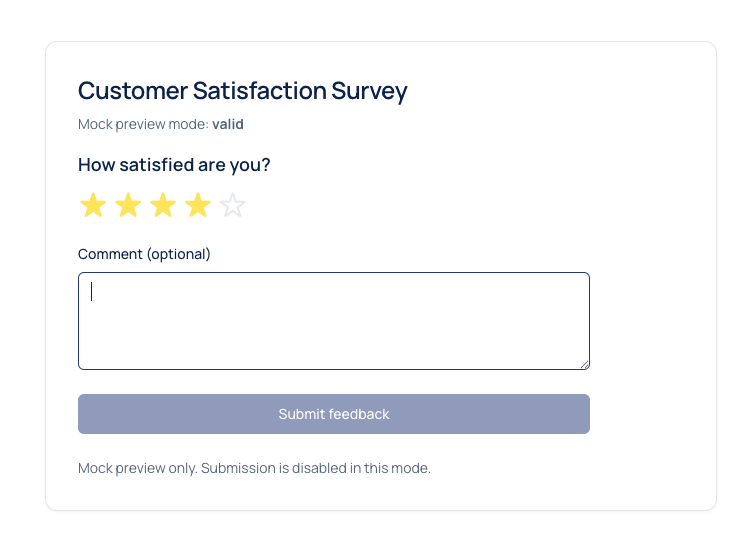
Dual Channel Support
Both channels can be active simultaneously. When enabled together, customers can respond through whichever method is most convenient.
Data Processing by Appfero
When External Survey channel is enabled, customer responses are collected and processed by Appfero. However, the data are polled from YouTrack every 20 minutes and after processing are deleted from Appfero platform.
Survey Settings
| Setting | Description | Plan Requirement |
|---|---|---|
| Survey Frequency | Choose between Once per issue (only the first resolution triggers a survey) or Every resolve (a survey is sent each time the issue is resolved). | All plans |
| Survey Expiration (days) | Number of days (1–90) before an unanswered survey expires. After expiration, the customer can no longer respond. | Pro and Enterprise |
Plan Restriction
Survey expiration customization is available from the Pro plan. Free and Starter plans use the default expiration period.
Mail Tab
The Mail tab controls the email notification that is sent to the issue reporter when a survey is triggered.
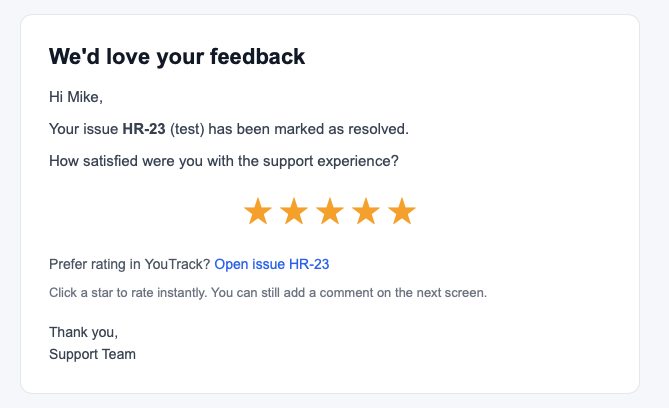
Mail Notification Toggle
Toggle Enable Mail Notification to control whether email notifications are sent when surveys are created. When disabled, surveys can still be completed via panel voting (if enabled), but no email is sent so external survey will not be triggered.
Email Template
The email template defines the subject line and HTML body of the survey notification.
| Element | Description | Plan Requirement |
|---|---|---|
| Subject | The email subject line, supporting template variables. | Starter and above |
| Body (HTML) | The HTML body of the email, editable with a built-in CodeMirror editor. | Starter and above |
Use Global Template
If an app administrator has configured a global email template, a project on a paid plan can enable Use global template. When enabled:
- the project inherits the global subject and body,
- the local project template is kept but not used,
- the preview shows the effective global message,
- future global template updates apply to this project automatically.
Keep this disabled when the project needs its own wording.
Template Variables
Use the following placeholders in the subject and body:
| Variable | Description | Example Value |
|---|---|---|
{issueId} | Issue ID | PROJ-123 |
{issueSummary} | Issue summary/title | Login page not loading |
{reporterName} | Reporter's display name | John Smith |
{issueUrl} | Direct link to the issue | https://youtrack.example.com/issue/PROJ-123 |
{ratingSection} | Star rating section (auto-generated when external channel is enabled) | ★★★★★ |
Rating Section
The {ratingSection} placeholder is automatically populated when the External Survey channel is enabled. Do not remove this variable from the body template, as it provides the clickable rating interface.
Email Actions
| Action | Description |
|---|---|
| Preview | Opens a rendered preview of the current template with sample data (available for paid plans) |
| Send Test | Sends a test email to yourself so you can verify the template in a real email client |
| Reset Default | Restores the email template to the default provided by Appfero (available for paid plans) |
Plan Restriction
Email template customization (subject and body editing) is available from the Starter plan. Free plan users receive a fixed default template.
Mail Configuration
CSAT sends survey emails through YouTrack. Make sure outgoing mail is configured in YouTrack before enabling notifications or sending a test email.
Custom Fields Tab
The Custom Fields tab lets you map CSAT data to your own YouTrack custom fields, enabling tighter integration with your existing reporting, searches, workflow rules, and automation.
Available Mappings
| Mapping | Description | Supported Field Types |
|---|---|---|
| Rating Field | Map the 1–5 star rating to a YouTrack custom field | Integer, Float, Enum |
| Comment Field | Map the optional customer comment to a YouTrack custom field | String, Text |
Enable Comments
Toggle Enable Comments to allow app to leave a comment when rating is submitted.
Configuring Field Mapping
- Select the target custom field from the dropdown (fields are auto-discovered from your YouTrack instance)
- If no mapping is desired, select "Not mapped"
- Click Save Configuration to persist changes
Plan Restriction
Custom field mapping is available from the Pro plan. Free and Starter plans use the default internal storage only.
Delivery Rules Tab
The Delivery Rules tab shows the active global survey delivery rules that apply when issues in this project are resolved.
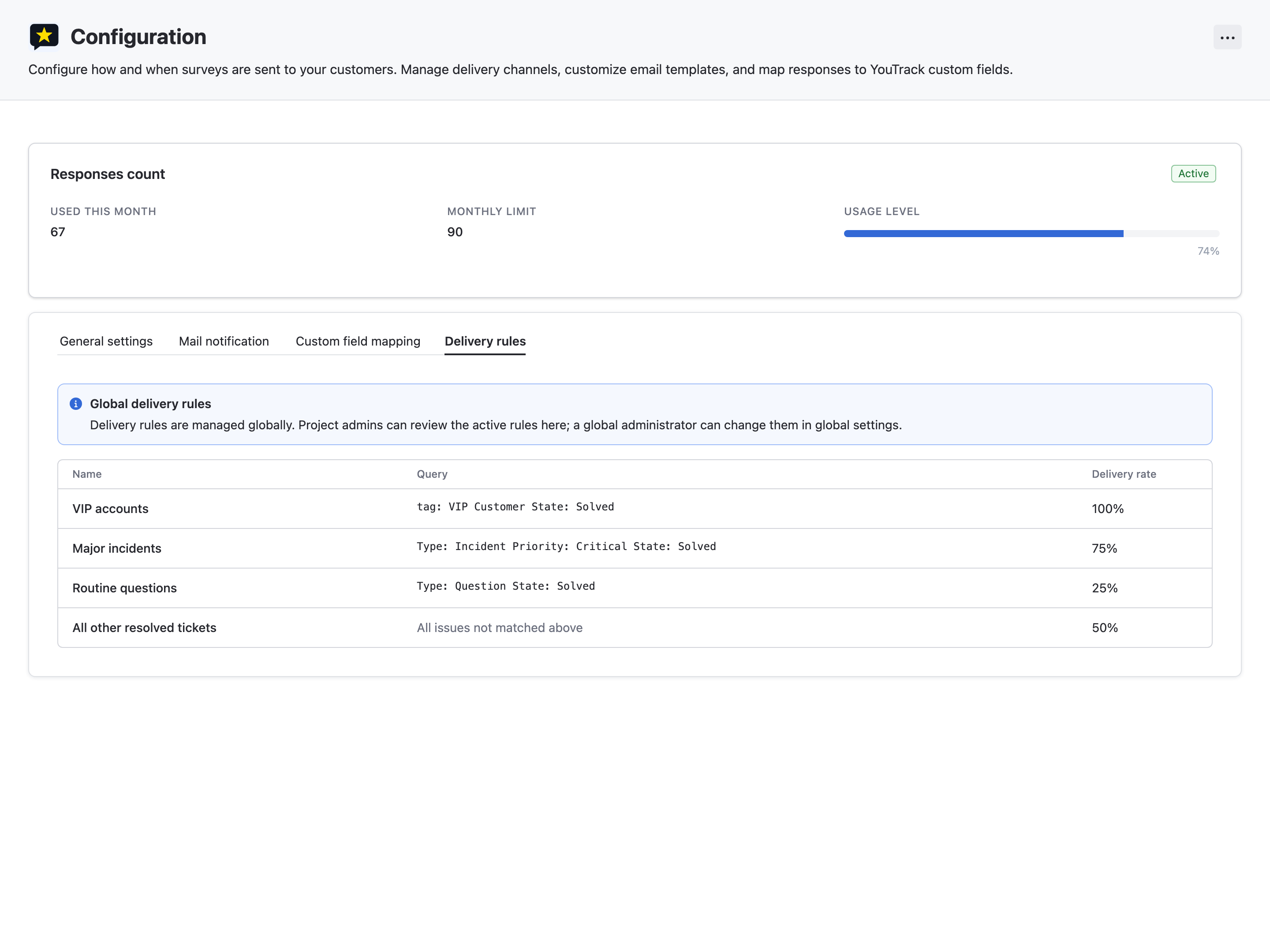
Project administrators can use this tab to review the app-wide rules that may affect survey generation. Rules are read-only at the project level because they are shared across the app and managed by app administrators.
Each rule shows:
- the rule name,
- the YouTrack query used for matching,
- the delivery rate,
- the default rule for all other resolved tickets.
To change delivery rules, ask an app administrator to update the global Delivery Rules tab in the CSAT administration settings.
Saving Configuration
Editable project settings across the General, Mail, and Custom Fields tabs are saved together. The Delivery Rules tab is read-only. After making changes:
- Click the Save Configuration button at the bottom of the settings panel
- A success notification confirms the changes have been persisted
Unsaved Changes
The Save button is disabled until you modify at least one setting. If you navigate away without saving, changes are lost.
Need More Help? Contact support@appfero.com or visit our FAQ page.