

Administration Guide
This guide helps YouTrack administrators install Customer Satisfaction (CSAT), manage the subscription, monitor response usage, configure global settings, and control survey delivery across projects.
📦 Installation
- Install the application from the YouTrack Marketplace
- Navigate to Administration → Integrations → Customer Satisfaction (CSAT)
- Review your subscription status and, if needed, purchase a paid plan
- Enable CSAT for individual projects from the global Projects tab or via Project Settings (see the Project Settings Guide)
Post-Installation Step Required
After installation in Apps, navigate to the Projects tab and select all projects that should use CSAT surveys. This step is essential for the app to trigger surveys when issues are resolved.
Uninstallation
Data Loss Warning
When uninstalling the application, ALL configuration and survey data (including collected responses and project settings) is permanently deleted by YouTrack. There is no way to restore this data after uninstallation unless you map responses to custom fields.
This does not apply to plugin updates — your configuration and data are preserved during updates.
We strongly recommend using the uninstallation option wisely and only when necessary.
💳 Subscription Management
The admin panel displays the Subscription Panel where you can monitor and manage your plan.
The panel shows:
- Status: Active, Trial, Expired, or Free
- Plan: Current plan name (Free, Starter, Pro, Enterprise)
- Instance Identifier: Base URL of the YouTrack instance
- Next Billing Date: When the subscription renews
- Manual Refresh: Button to force subscription re-validation
- Manage Subscription: Link to the Paddle customer portal (for paid plans)
- Buy Subscription / Change Plan: Button to purchase or upgrade your plan
- Offline Activation: Button to activate the subscription in offline mode
Upgrading Your Plan
- Click "Buy now" or "Change plan" in the admin panel
- You'll be redirected to secure checkout on appfero.com
- Select your desired plan (Starter, Pro, or Enterprise)
- Choose Monthly or Annual billing
- Complete payment and return to YouTrack
- Click "Refresh" in the admin panel — your new plan activates immediately
Upgrade from Within the App
All subscription purchases and upgrades are done directly from within the YouTrack application.
Offline Activation (Custom)
For air-gapped or restricted-network environments, Custom plans support offline licensing:
- Contact Support: Reach out to discuss your requirements
- Receive Token: We will provide a signed offline license token
- Activate: Paste the token into the Offline Activation dialog in the admin panel
Internet Connection Required
Standard subscription validation (Free, Starter, Pro, Enterprise Standard) requires an active internet connection. For air-gapped installations, use the Custom plan with offline licensing.
📊 Responses Usage Monitoring
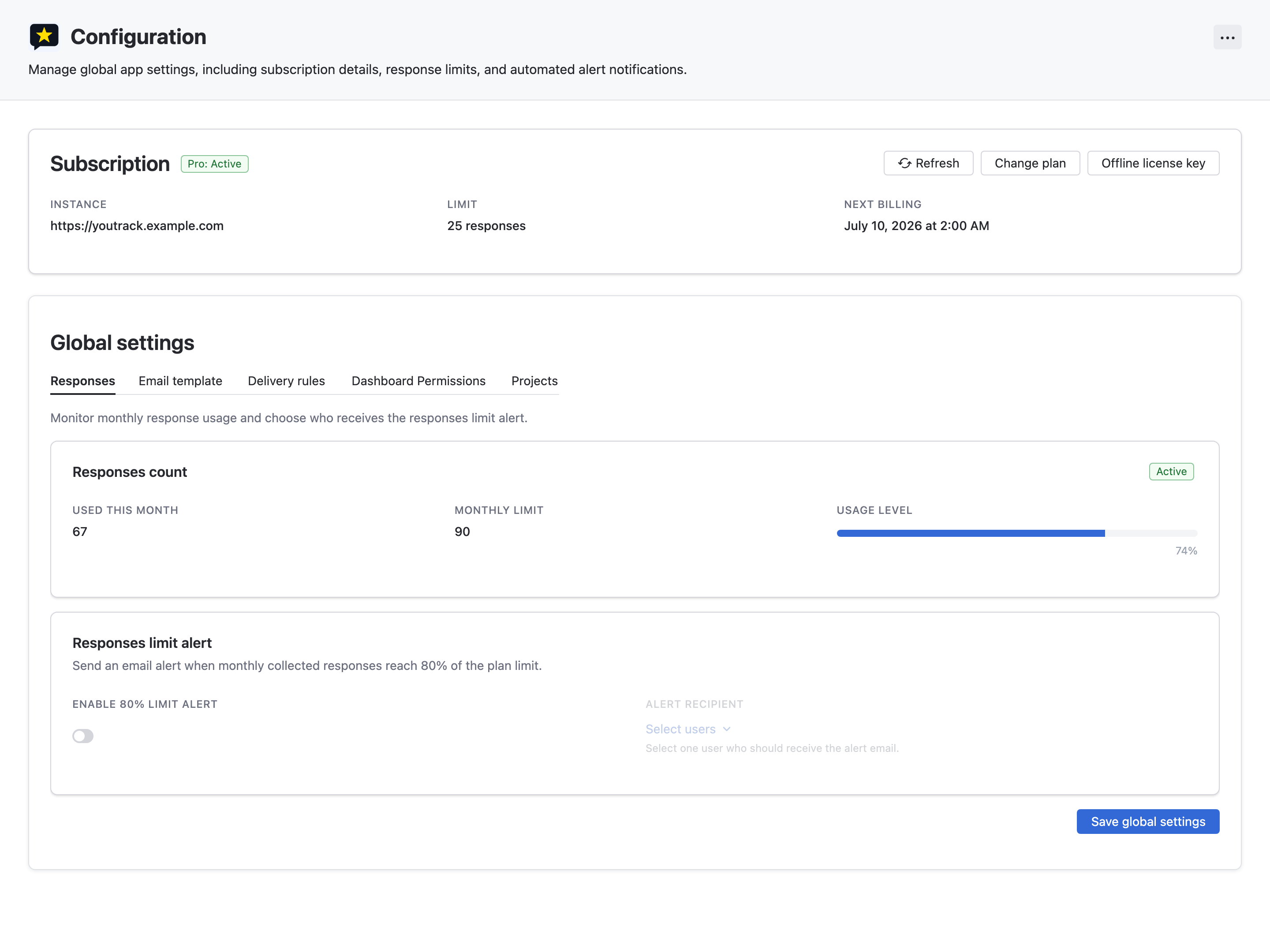
The Responses Usage card in the admin panel provides real-time visibility into your monthly response consumption.
Displayed information:
| Field | Description |
|---|---|
| Used | Number of CSAT responses collected this month |
| Limit | Monthly response limit for your current plan (or "Unlimited" for Enterprise) |
| Usage Level | Visual progress bar with percentage |
| Status Tag | Active, Near Limit (>80%), or Limit Reached |
When the monthly limit is reached:
- New survey sending and response collection are paused
- Existing configuration, historical data, and dashboards remain accessible
- Usage resets at the beginning of the next calendar month
Responses Usage is also shown on Project Settings
The same usage card appears in the Project Settings widget, so project owners can track consumption without accessing the global admin panel.
Global Settings
Global settings are organized into tabs so administrators can manage app-wide behavior from one place.
| Tab | Purpose |
|---|---|
| Responses | Review response usage and configure usage alerts |
| Email Template | Define the global survey notification template that projects can inherit |
| Delivery Rules | Define ordered YouTrack query rules and delivery rates for survey generation (Pro and Enterprise) |
| Dashboard Permissions | Control who can view dashboard reports and who can create or configure report widgets (Pro and Enterprise) |
| Projects | Enable CSAT for projects and review project-level channel, survey, mail template, and field-mapping status |
Use Save global settings to persist changes made in global configuration tabs.
🔔 Usage Alert Settings
Administrators can configure automatic email alerts when response usage approaches the plan limit.
Configuring Alerts
- Locate the Usage Alert Settings card in the admin panel
- Toggle Enable Usage Alerts on
- Select a Recipient — the YouTrack user who will receive the alert email
- Click Save
When usage reaches 80% of the monthly limit, the selected recipient receives an email notification. The alert is sent once per billing month.
Dashboard Permissions
Dashboard permissions let app administrators decide who can use CSAT reports on YouTrack dashboards.
Dashboard permissions are available on Pro and Enterprise plans. On Free and Starter plans, dashboard reports remain available to everyone.
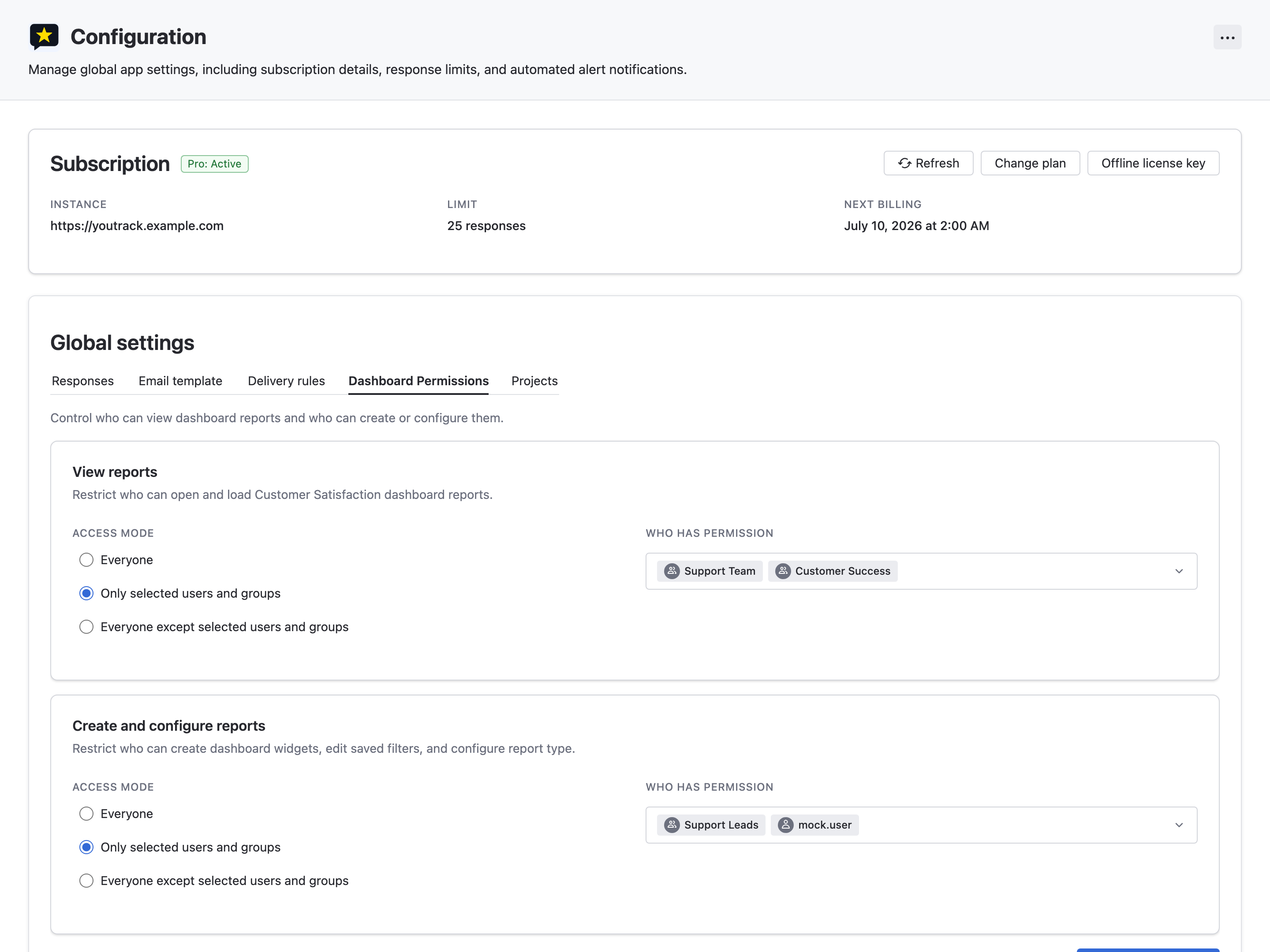
Two permission areas are available:
| Permission | Description |
|---|---|
| View reports | Controls who can load and view CSAT dashboard report data |
| Create and configure reports | Controls who can add CSAT dashboard widgets and edit widget configuration, including report mode and filters |
Each permission can be open to everyone or scoped to selected users and groups. View permissions are enforced when report data is requested.
Projects
The CSAT Projects tab gives app administrators a global view of CSAT project adoption. It is separate from YouTrack's app installation project list and focuses on CSAT collection status and project-level configuration.
From this tab you can:
- enable or disable CSAT collection for a project,
- open a project's detailed CSAT settings,
- review which feedback channels are enabled,
- see survey frequency and expiration settings,
- check whether a project uses its own email template, the global template, or the default template,
- review whether rating and comment custom fields are mapped.
Global Email Template
The global email template lets administrators define a shared survey notification subject and body on paid plans. Projects can opt in to use this template from the project Mail tab.
Use the global template when you want consistent wording and branding across many projects. Projects that do not opt in keep their own saved template or the default app template, and project templates are preserved when global inheritance is active.
Mail Configuration
CSAT sends survey emails through YouTrack. Make sure outgoing mail is configured in YouTrack before enabling notifications or sending a test email.
Delivery Rules
Delivery rules control which resolved issues receive CSAT surveys.
Delivery rules are available on Pro and Enterprise plans. On Free and Starter plans, CSAT uses the default delivery behavior.
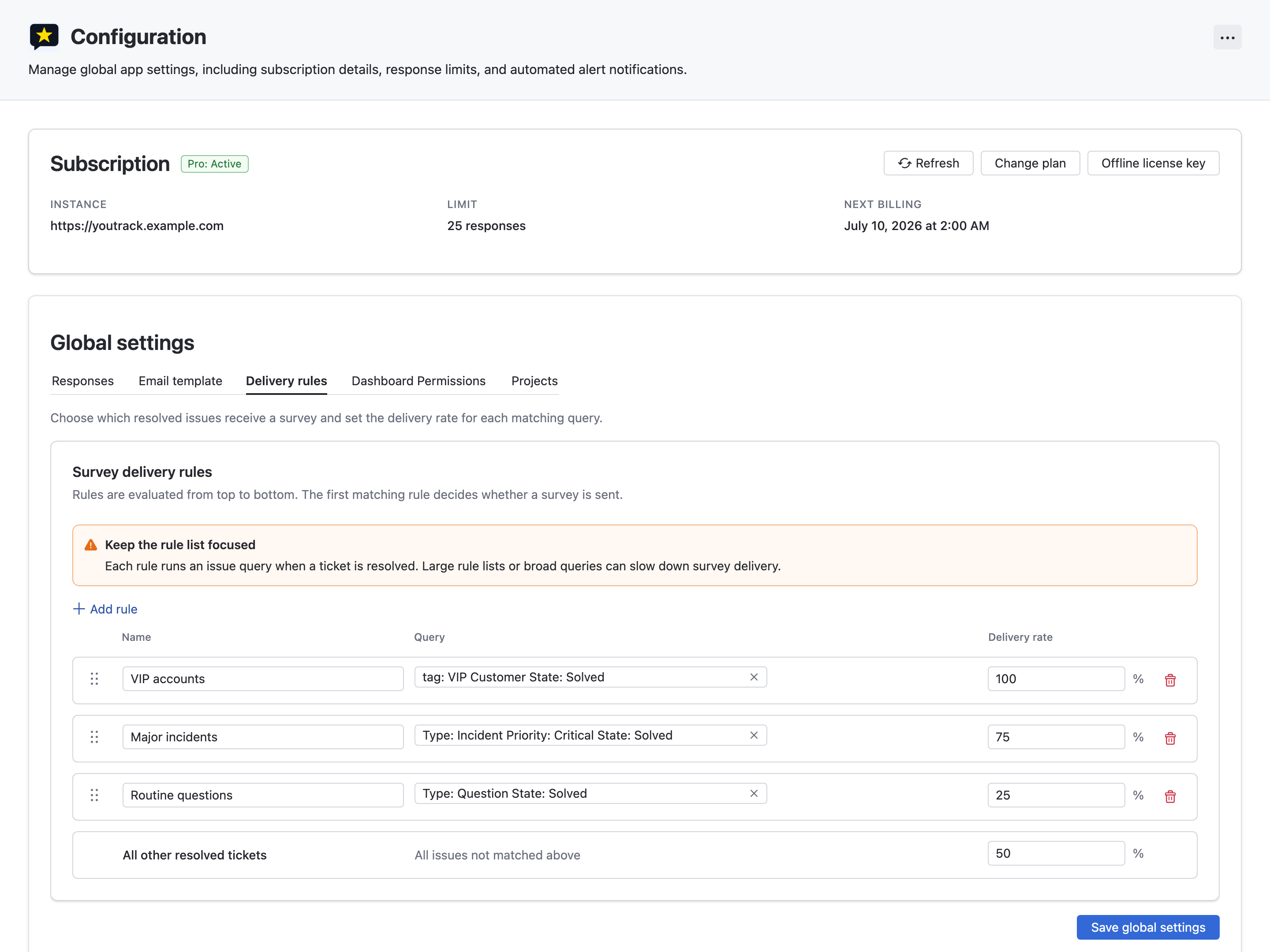
Rules are evaluated in order:
- Custom rules match issues using YouTrack search queries.
- The first matching custom rule decides the delivery rate.
- If no custom rule matches, the default rule applies to all other resolved issues.
Delivery rates are deterministic for each issue and rule. This means a resolved issue will make the same send/no-send decision when the same rule configuration is evaluated again.
Example:
| Rule | Query | Delivery rate |
|---|---|---|
| Incident tickets | Type: Incident | 100% |
| All other resolved tickets | Default rule | 50% |
Project administrators can view active delivery rules in project settings, but only app administrators can change them globally.
🆕 What's New Feature
Administrators can view release announcements and feature highlights directly in the admin panel.
Accessing Release Announcements
- Click the More Options menu (⋮) in the top-right corner of the admin panel
- Select "What's New" to view recent release announcements
- Review the changelog and dismiss when done
- If a newer app version is available, an "Update available" option appears in the menu — click to go to the Manage Apps page
🔧 Troubleshooting
Surveys Not Being Sent
- Check Project Settings: Ensure CSAT is enabled for the project (see Project Settings Guide)
- Verify Mail Notification: Confirm that mail notifications are toggled on in YouTrack Mail settings
- Check Delivery Rules: Confirm that the resolved issue matches a rule with a non-zero delivery rate, or that the default rule allows delivery
- Check Limit: If the monthly response limit is reached, survey delivery is paused until the next month or plan upgrade
- Check Projects Tab: Ensure the project is selected in the app's Projects tab under Administration → Apps
Subscription Not Activating
- Refresh Manually: Click the Refresh button in the Subscription Panel
- Check Internet: Standard plans require an active internet connection for subscription validation
- Clear Cache: Try refreshing the browser page
Responses Not Counted
- Check Survey Channels: Ensure at least one feedback channel (external email or panel voting) is enabled for the project
- Verify Survey Frequency: If set to "Once per issue," a response is only collected on the first resolution
Need More Help? Contact support@appfero.com or visit our FAQ page.