

Article Panel Guide
This guide helps knowledge-base contributors use Checklists on YouTrack articles.
Open the Article Panel
Checklists appears above the article activity stream when the app is available and access is active.
Article checklists use article extension properties. They do not share checklist state or history with issues.
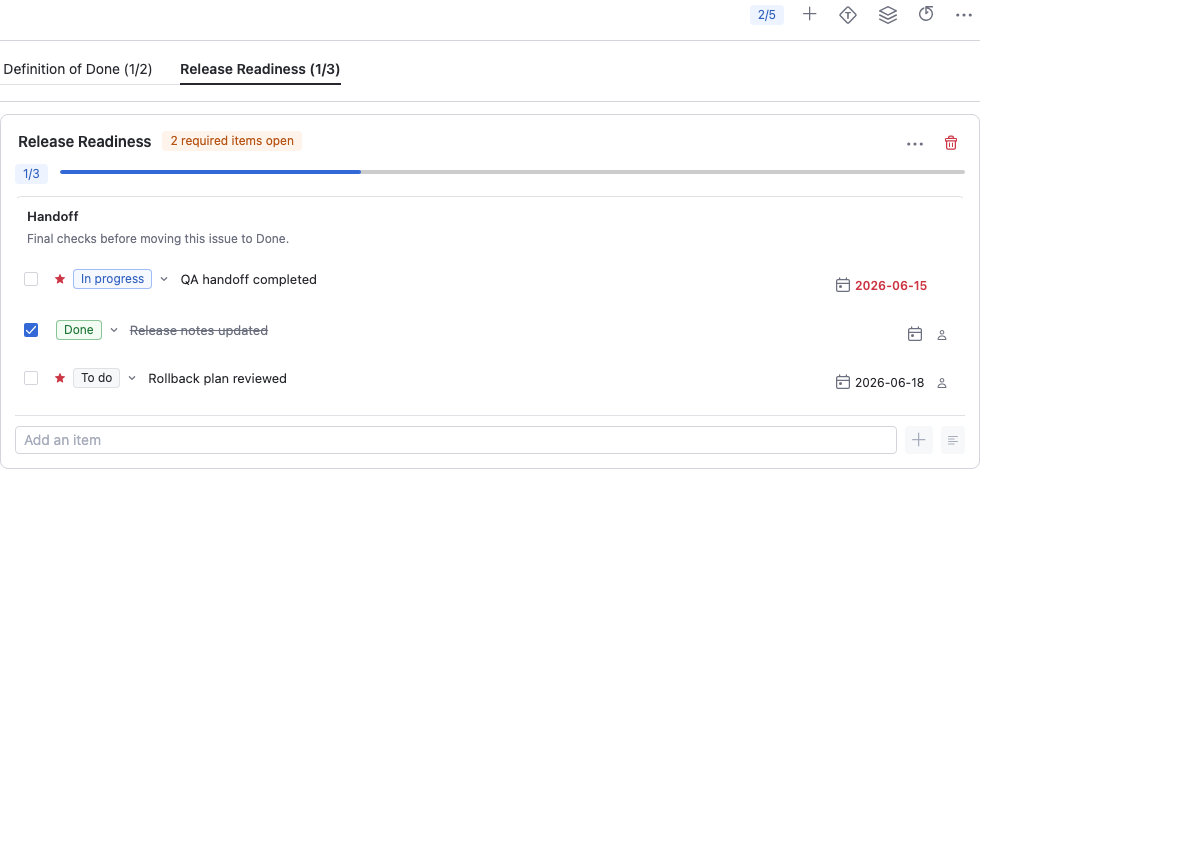
Checklist Basics
From the article panel, users who can update the article can:
- add one or more checklists,
- add checklist items and section headers,
- edit checklist text and descriptions,
- mark items required or optional,
- check or uncheck items,
- select checklist statuses when statuses are enabled,
- switch between list and tab display modes,
- apply templates,
- review checklist history when history is enabled.
Use article checklists for documentation review, publication readiness, onboarding pages, runbooks, and knowledge-base maintenance.
Permissions
Users need article permissions for article checklist work.
| User goal | YouTrack permission typically needed |
|---|---|
| View checklists on an article | Read Article |
| Edit article checklists or apply templates | Update Article |
| Manage templates from project settings | Update Project |
Read-only article users can view checklist content and history, but cannot change checklist content.
Templates
Templates are shared with issue checklists. Applying a template to an article copies its checklist structure into the article.
Updating a template later does not change checklists that were already copied into articles.
Differences from Issue Checklists
Article checklists do not run issue workflow automation:
- auto-apply rules are issue-only,
- guarded workflow states are issue-only,
- Helpdesk reporter visibility applies only to issue panels.
Troubleshooting
I cannot edit article checklists
- Confirm that the app has active access.
- Confirm that you can update the article.
- Refresh the article page.
A template is missing
- Confirm that the template is built-in, global, or scoped to the current project.
- Ask an administrator whether the built-in template was disabled.
Next step: Review Issue Panel Guide for issue-specific checklist behavior.