

Admin Guide
This guide helps YouTrack administrators start using Checklists, configure installation-wide checklist behavior, and maintain the global template catalog.
Installation
- Install Checklists for YouTrack from the JetBrains Marketplace.
- In YouTrack, open Administration -> Apps.
- Open Checklists.
- Review the access status shown in the subscription panel.
- Review global settings, statuses, and templates before asking project administrators to configure their projects.
Access Status
The administration page includes an Appfero subscription panel. Use it to:
- review the current access status,
- refresh subscription data,
- open subscription management,
- activate offline access where supported.
If access is inactive, checklist screens tell users that active access is required.
General Settings
Assignment Notifications
Use Send email notifications when checklist items are assigned to decide whether Checklists sends an email when a checklist item receives an assignee.
When this setting is enabled, Checklists sends an assignment email after a saved checklist item assignment changes to a specific user on an issue or article. The email is sent even when the user assigns the item to themselves.
Checklists does not send an assignment email when:
- the assignee is cleared,
- the item was already assigned to the same user,
- the checklist item cannot be found after the save,
- the recipient cannot be resolved to a verified YouTrack user email,
- the recipient cannot read the issue or article,
- global or project assignment notifications are disabled.
The project setting can disable these notifications for a specific project even when the global setting is enabled. Assignment emails are sent through YouTrack, so outgoing mail must be configured in YouTrack for delivery.
Checklist History
Use Enable checklist history to decide whether users can review checklist changes from the issue panel.
When enabled, users can open the issue panel history view and see checklist changes such as:
- checklist and item creation,
- item completion changes,
- status changes,
- required flag changes,
- due date and assignee updates,
- template application,
- template saving.
When disabled, new checklist changes are not added to history. Existing checklists remain available.
Statuses
Global statuses define the default checklist workflow for projects that do not use project-specific statuses.
Each status has:
- Name: the label shown in the issue panel.
- Color: the tag color used for quick scanning.
- Checked behavior: whether selecting the status completes the item.
- Default marker: the status assigned to new items when applicable.
The default global statuses are:
| Status | Meaning | Typical use |
|---|---|---|
| To do | Open | Work has not started. |
| In progress | Open | Work is underway but not complete. |
| Done | Complete | Work is finished. |
| Skipped | Complete | Work is intentionally not needed. |
Disable Checklist Statuses
If your team only needs simple checkbox behavior, disable checklist statuses globally. When statuses are disabled:
- issue panels hide status selectors and status tags,
- users complete items with checkboxes only,
- project-specific status overrides are disabled.
Keep Statuses Simple
Use a short status list that matches the way teams already talk about checklist work. Before saving, check that:
- each status has a clear name,
- names are not duplicated,
- the list includes at least one open status and one complete status,
- only one status is marked as the default.
Templates
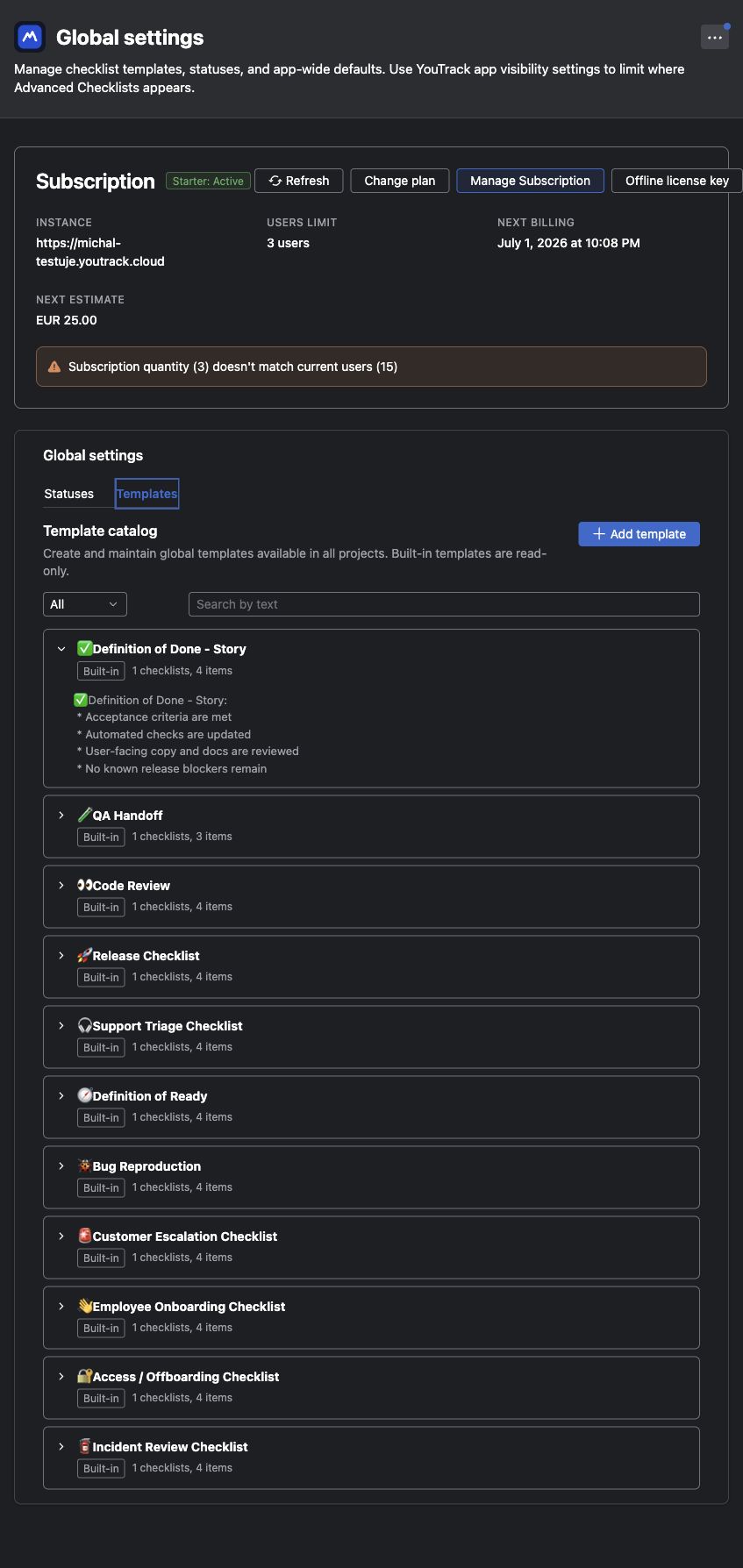
The global template catalog lets administrators manage templates that should be available across projects.
Template Scope and Customization
Checklists uses three template scopes:
| Template scope | Who manages it | How to customize it |
|---|---|---|
| Built-in | Global administrators can enable or disable it | Copy it to a global or project template, then edit the copy |
| Global | Global administrators | Edit it from global administration |
| Project | Project administrators for that project | Edit it from project settings |
Templates are copied into issues when applied. Updating a template later does not change checklist content that was already copied into an issue.
Built-in Templates
Checklists ships with built-in templates for common workflows:
- Access / Offboarding Checklist
- Bug Reproduction
- Code Review
- Customer Escalation Checklist
- Definition of Done - Story
- Definition of Ready
- Employee Onboarding Checklist
- Incident Review Checklist
- QA Handoff
- Release Checklist
- Support Triage Checklist
Built-in templates are read-only. Administrators can disable built-in templates that should not appear in project settings or issue template pickers.
To customize a built-in template, copy it to a global template first, then edit the copy.
Global Templates
Global templates are editable templates available to projects where Checklists is enabled. Use them for organization-wide processes such as:
- release readiness,
- production change review,
- customer escalation,
- security review,
- shared Definition of Done.
To create a global template:
- Open Templates in the global administration page.
- Create a new template or copy an existing template to global scope.
- Add one or more checklists.
- Add section headers and items.
- Mark required items.
- Save the template.
Global template changes do not update checklists that were already copied into issues.
Recommended Rollout
For a clean first rollout:
- Confirm that Checklists has active access.
- Review whether checklist history should stay enabled.
- Keep global statuses enabled unless your team only needs checkboxes.
- Disable built-in templates that do not fit your organization.
- Create one or two global templates for the workflows you want to standardize first.
- Ask project administrators to configure Project Settings.
- Ask issue users to read the Issue Panel Guide.
Permissions
Global administration is intended for users who can manage the app at the YouTrack installation level.
Project administrators can manage project settings separately from global administration. Issue users need permission to update an issue before they can change checklist content.
| User goal | YouTrack permission typically needed |
|---|---|
| View checklists on an issue | Read Issue |
| Edit issue checklists or apply templates | Update Issue |
| View checklists on an article | Read Article |
| Edit article checklists or apply templates | Update Article |
| Manage project settings and project templates | Update Project |
| Manage global settings and global templates | Admin Update App |
Troubleshooting
Access status does not update
- Refresh the administration page.
- Use the manual refresh action in the subscription panel.
- Verify that the YouTrack instance has internet access if you use online validation.
- Contact support@appfero.com if the state does not update.
Global settings cannot be saved
- Confirm that you are using the global administration page.
- Confirm that your YouTrack account can manage the app.
- Review the visible settings and save again.
- Reload the page and try again.
Status selectors disappeared from issues
Checklist statuses are probably disabled globally. Re-enable statuses in global settings if users should see status tags and status selectors again.
A built-in template is missing from projects or issue pickers
Check whether the built-in template is disabled in the global template catalog. Disabled built-ins remain visible in global administration but are hidden from project configuration and issue apply views.
Next step: Continue with the Project Settings Guide.