

Checklists for YouTrack
Welcome to the Checklists for YouTrack documentation. Checklists helps teams turn recurring issue and article work into reusable checklists that stay close to the YouTrack surface where work happens.
Key Features
- Issue and article checklists: Keep structured checklist work on YouTrack issues and knowledge-base articles.
- Multiple checklists per issue or article: Keep separate workstreams on the same surface, then view them as a list or as tabs.
- Items and sections: Add checklist items, section headers, descriptions, required flags, assignees, and due dates.
- Progress and readiness: See completed work and open required work directly in the issue panel.
- Reusable templates: Start from built-in templates or create global and project templates for your own processes.
- Project automation: Apply templates automatically to new issues that match selected issue types.
- Guarded workflow states: Prevent selected state changes until required checklist items are complete.
- Checklist history: Review checklist changes from the issue when history is enabled.
- Assignment notifications: Notify users by email when they are assigned to checklist items on issues or articles.
Why Teams Use Checklists
- Standardize recurring work: Reuse Definition of Done, QA handoff, release, incident, support, onboarding, and access processes.
- Keep process work visible: Checklist work stays on the issue or article instead of spreading into separate documents or subtasks.
- Make required work clear: Required item progress gives users and project owners a simple readiness signal.
- Support lightweight ownership: Assign checklist items and due dates without turning every row into a separate issue.
- Reduce setup drift: Global defaults and project settings help administrators roll out a shared process and adapt it where needed.
Quick Start
- YouTrack administrators: Install Checklists from the JetBrains Marketplace, then open the Admin Guide to configure global settings, checklist statuses, and global templates.
- Project administrators: Use the Project Settings Guide to enable Checklists for a project, set up auto-applied templates, and configure guarded states.
- Issue users: Follow the Issue Panel Guide to create checklists, apply templates, complete required work, assign owners, and review history.
- Article users: Follow the Article Panel Guide to use checklists on knowledge-base articles.
- Administrators managing access: Review Subscription for general access-management guidance.
Product Areas
Global Administration
The global administration page controls installation-wide behavior:
- access status
- checklist history
- checklist item assignment notifications
- global checklist statuses
- built-in template availability
- global templates
Project Settings
Project settings control how Checklists behaves in one YouTrack project:
- whether Checklists is enabled for the project
- whether checklist item assignment notifications are sent for the project
- whether Helpdesk reporter-facing views should hide the issue panel
- which templates apply automatically to new issues
- which workflow states are guarded by required checklist readiness
- whether the project inherits global statuses or uses project-specific statuses
- project templates
Issue Panel
The issue panel appears above the activity stream and is the main daily workspace:
- add, rename, delete, and reorder checklists
- add items and section headers
- mark items required or optional
- update statuses, checkboxes, assignees, due dates, and descriptions
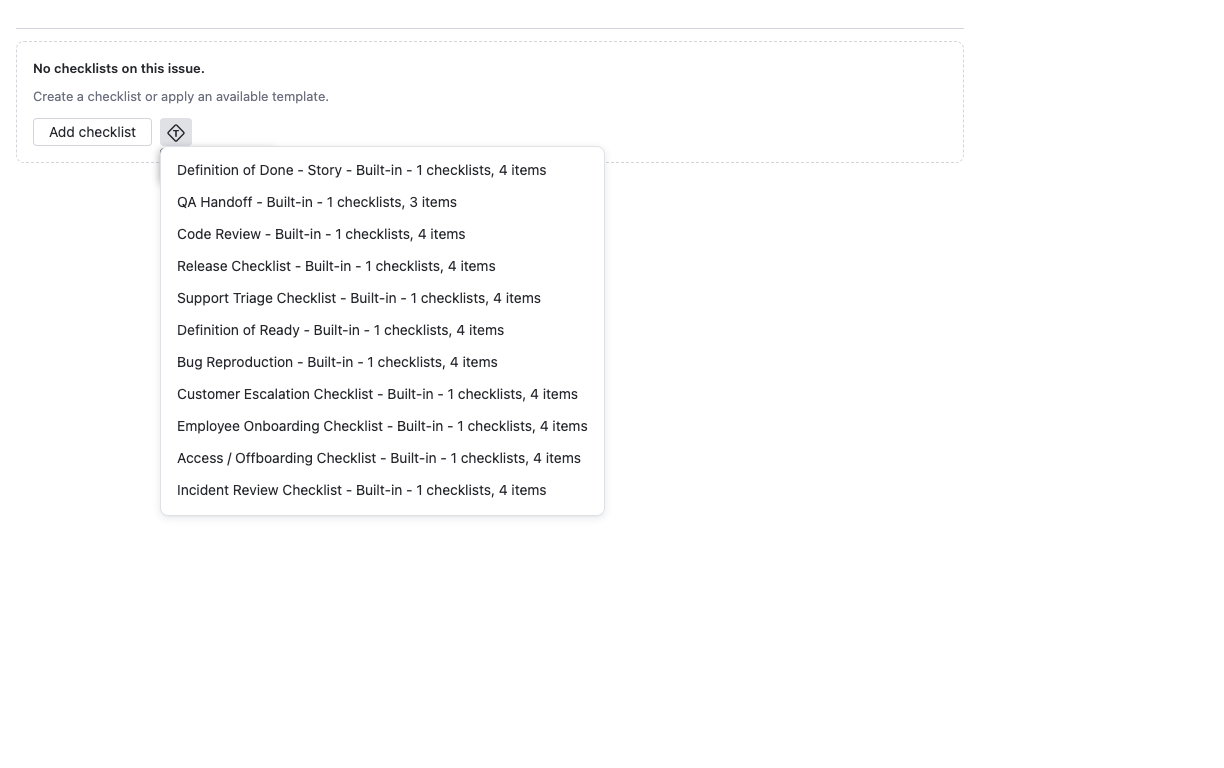
- apply templates and save checklist content as a template when permitted
- review checklist history when history is enabled
Article Panel
The article panel appears above the article activity stream and supports reusable checklist work for knowledge-base content:
- add article checklists and checklist items
- apply built-in, global, and project templates
- track publication, review, and maintenance tasks
- review article checklist history when history is enabled
Templates
Templates are copied into issues when applied. Updating a template later does not change checklists that were already copied into issues.
Templates can contain one or more checklists. Surface-specific details such as completion state, assignee, due date, and history stay on the issue or article where the template was applied.
Requirements
- YouTrack: YouTrack Cloud or YouTrack Server with app support.
- Installation: Checklists is distributed through the JetBrains Marketplace.
- Permissions: Users need the appropriate YouTrack permissions for the surface they use. Read-only issue users can view checklists and history, but cannot change checklist content.
- Connectivity: Online access management requires internet access. Offline activation is available for supported installations.
Permissions at a Glance
| User goal | YouTrack permission typically needed |
|---|---|
| View checklists on an issue | Read Issue |
| Edit issue checklists or apply templates | Update Issue |
| View checklists on an article | Read Article |
| Edit article checklists or apply templates | Update Article |
| Manage project settings and project templates | Update Project |
| Manage global settings and global templates | Admin Update App |
Need Help? Contact support@appfero.com or use the support form.