

Reporter Guide
This guide helps reporters use the Custom Ticket Views application to view and manage their tickets efficiently.
Finding your tickets in YouTrack shouldn't be a treasure hunt. This application gives you a dedicated, customizable view of all your tickets with powerful search, sorting, and filtering capabilities—all configured by your administrator to show exactly the information you need.
🚀 Getting Started
Access your customized ticket view:
- Navigate to Custom Ticket Views in the YouTrack main menu
- You'll see a table displaying your tickets with columns configured by your administrator
- Use the search box, column selector, and sorting options to customize your view
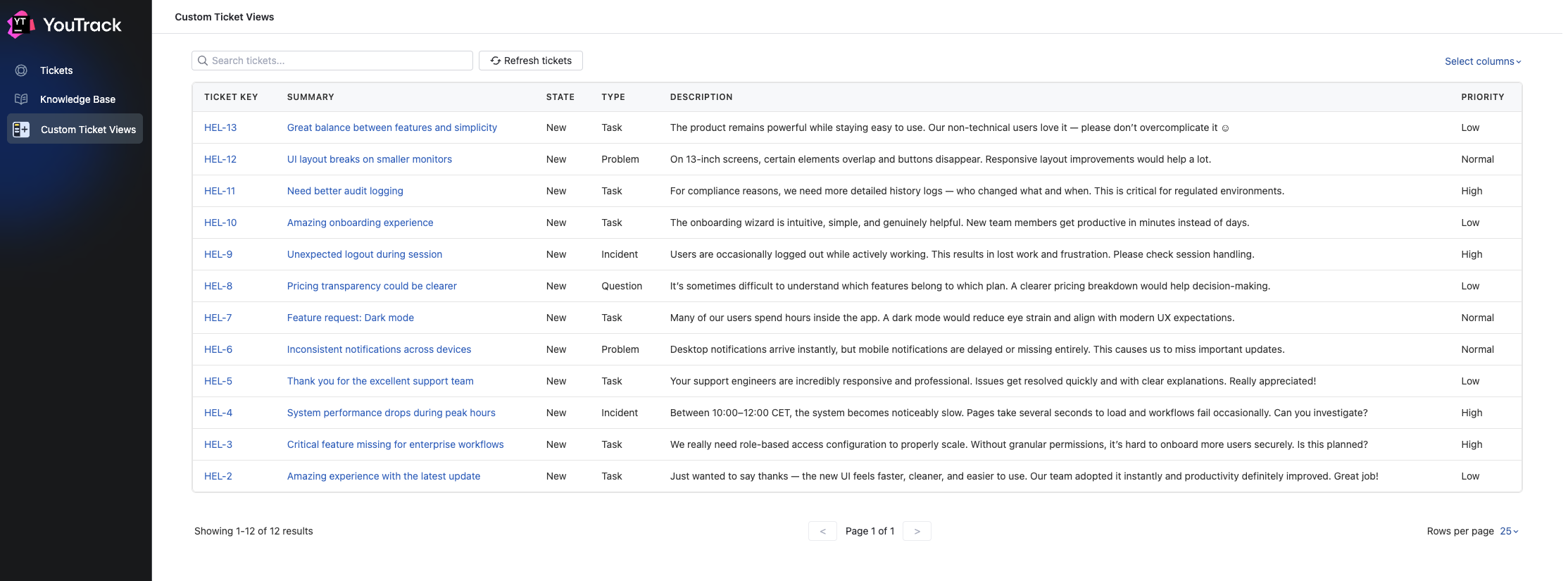 Custom Ticket Views interface with your tickets displayed
First Time Users
If you don't see table with tickets but see no access message, contact your administrator to verify:
- The app is enabled globally
- You have access permissions (check Access Control settings)
- Your subscription is active
🔍 Search Functionality
The search box allows you to quickly find tickets by searching for text phrases.
How Search Works
- Full-Text Search: Searches across your tickets using YouTrack's search capabilities
- Real-Time Results: Results update as you type (with a short debounce delay)
- Case-Insensitive: Search is not case-sensitive (
"bug"matches"Bug","BUG", etc.) - Combined with Filters: Search works alongside any other filters or sorting you've applied
📊 Column Customization
Customize which columns are visible in your ticket table.
Show/Hide Columns
- Click the Select columns button in the top-right corner
- A dropdown appears showing all available columns
- Check/uncheck columns to show/hide them
- Changes apply immediately to your current session
Click the "Select all" button to show all columns. "Deselect all" button hides all columns.
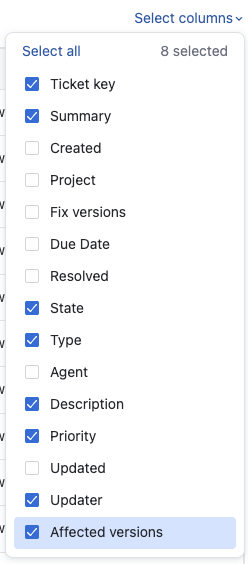 Column selector dropdown menu
Save Your Column Preferences
Column visibility preferences are now saved when you use the Save View button! Your selected columns will be restored automatically when you return. See Saving Your View for details.
Available Columns
The columns available to you depend on what your administrator has enabled. See the Admin Guide for a complete list of supported field types.
🔄 Column Reordering
Organize your columns in the order that makes the most sense for your workflow. You can rearrange columns by dragging and dropping them into your preferred positions.
How to Reorder Columns
- Locate the Drag Handle: Each column header has a drag handle icon (⋮⋮) on the left side
- Click and Hold: Click on the drag handle and hold your mouse button down
- Drag to Position: Move your mouse left or right to drag the column
- Visual Feedback: You'll see visual indicators showing where the column will be placed
- Release to Drop: Release the mouse button to drop the column in its new position
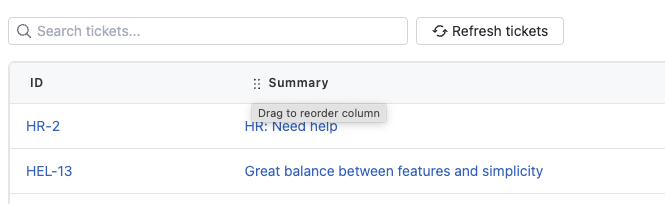 Drag columns to reorder them - visual feedback shows drop position
Keyboard Support
You can also reorder columns using your keyboard for better accessibility:
- Focus on a column header drag handle (Tab to navigate)
- Press Space or Enter to pick up the column
- Use Arrow Keys (← →) to move the column left or right
- Press Space or Enter again to drop the column
- Press Escape to cancel the drag operation
Session Persistence
Column order persists within your current session:
- Before Saving: Column order is maintained as you navigate, search, and filter
- After Refresh: Column order resets to default unless you've saved your view (see Saving Your View)
- Multiple Tabs: Each browser tab maintains its own column order until saved
Save Your Preferred Order
To make your column order permanent across sessions, use the Save View button after arranging columns. See Saving Your View for details.
↕️ Sorting
Sort your tickets by any column to organize them according to your needs.
Single-Column Sorting
- Click any column header to sort by that column
- Click again to toggle between ascending (↑) and descending (↓) order
- Visual indicators show the current sort direction
Multi-Column Sorting
Sort by multiple columns simultaneously:
- Click the first column header to set primary sort
- Hold Shift and click another column header to add secondary sort
- Continue holding Shift and clicking to add more sort levels
- Numbers next to sort arrows indicate sort priority (1, 2, 3, etc.)
Clear Sorting
Click the "Clear Sort" button to remove all sorting and return to the default order.
Supported Field Types
All YouTrack field types support sorting except Description field.
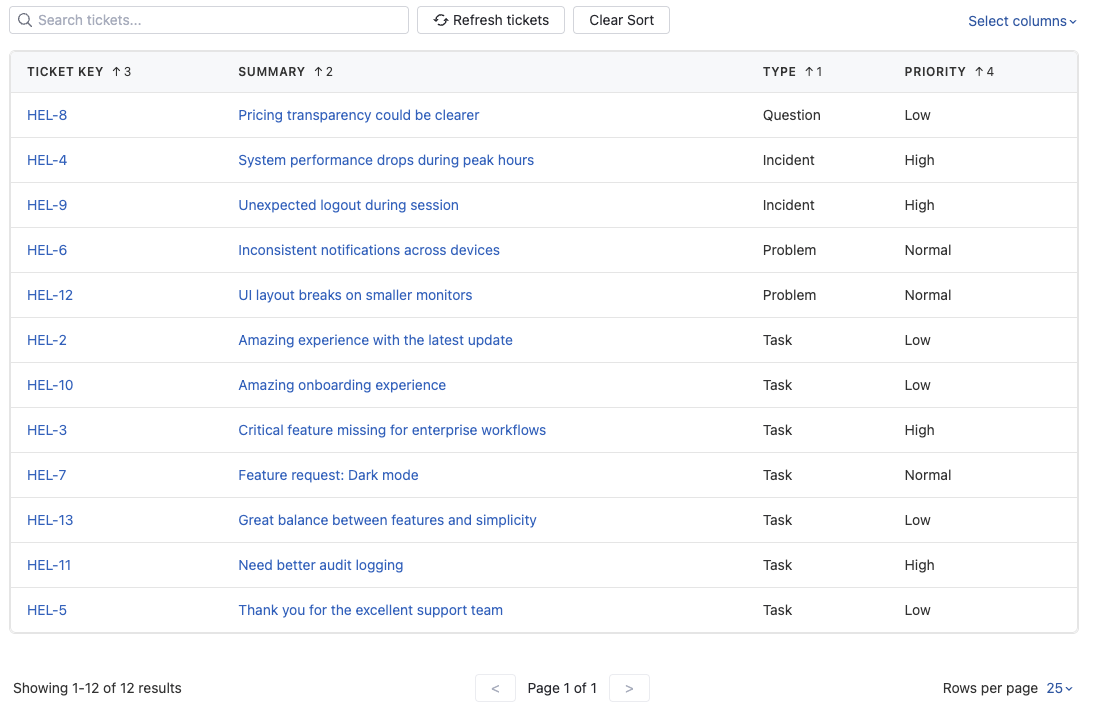 Multi-column sorting with visual indicators
📄 Pagination
Control how many tickets are displayed per page and navigate through large result sets.
Rows Per Page
Select from the dropdown in the bottom-right corner:
- 10 rows - Best for quick scanning
- 25 rows - Default, balanced view
- 50 rows - More context per page
- 100 rows - Maximum rows per page
Save Your Page Size
Your selected page size is saved when you use the Save View button and will be restored automatically on your next visit. See Saving Your View for details.
Page Navigation
- Previous/Next: Use arrow buttons to navigate sequentially
- Results Counter: Shows "Showing X-Y of Z results" to track your position
Refresh Button
Click the Refresh button to manually reload ticket data from YouTrack. This is useful if:
- You've made changes in another YouTrack view
- You want to see the latest updates from other team members
- You suspect data might be stale
📤 Exporting to CSV
If your administrator enables ticket exporting, you'll see an Export to CSV button in the reporter toolbar next to Save View.
What gets exported
- Up to 1000 tickets from your current reporter view
- The current search query
- The current sorting
- Only the currently visible columns
- Columns in the same order as shown in the table
How export works
- Configure your table exactly how you want it
- Click Export to CSV
- Wait for the button loading state to finish
- Open the downloaded
.csvfile in Excel, Numbers, or Google Sheets
Export limit
CSV export includes a maximum of 1000 tickets per file. If your current view matches more than 1000 tickets, the app exports only the first 1000 and shows a warning.
📅 Date Formatting
All date and datetime fields are automatically formatted according to your personal YouTrack profile preferences. The application reads your YouTrack profile settings and applies them to all date fields.
💾 Saving Your View
Never reconfigure your view again! You can save your personalized view settings and have them automatically restored every time you return to Custom Ticket Views.
What Gets Saved
When you save your view, the following settings are preserved:
- Column Order: The exact arrangement of your columns
- Column Visibility: Which columns are shown or hidden
- Sorting: Your multi-column sort configuration
- Search Query: Your current search text
- Page Size: Your selected rows per page (10, 25, 50, or 100)
Saved view settings do not include the exported CSV file itself. Export always reflects the table state that is currently visible when you click Export to CSV.
How to Save Your View
- Configure Your View: Arrange columns, set sorting, choose visible columns, and adjust page size to your liking
- Look for the Save Button: The Save View button appears in the toolbar (next to the column selector)
- Check if Changes Detected: The button is only enabled when you've made changes compared to your last saved view
- Click Save View: Click the button to save your current configuration
- Confirmation: You'll see a success message: "View settings saved"
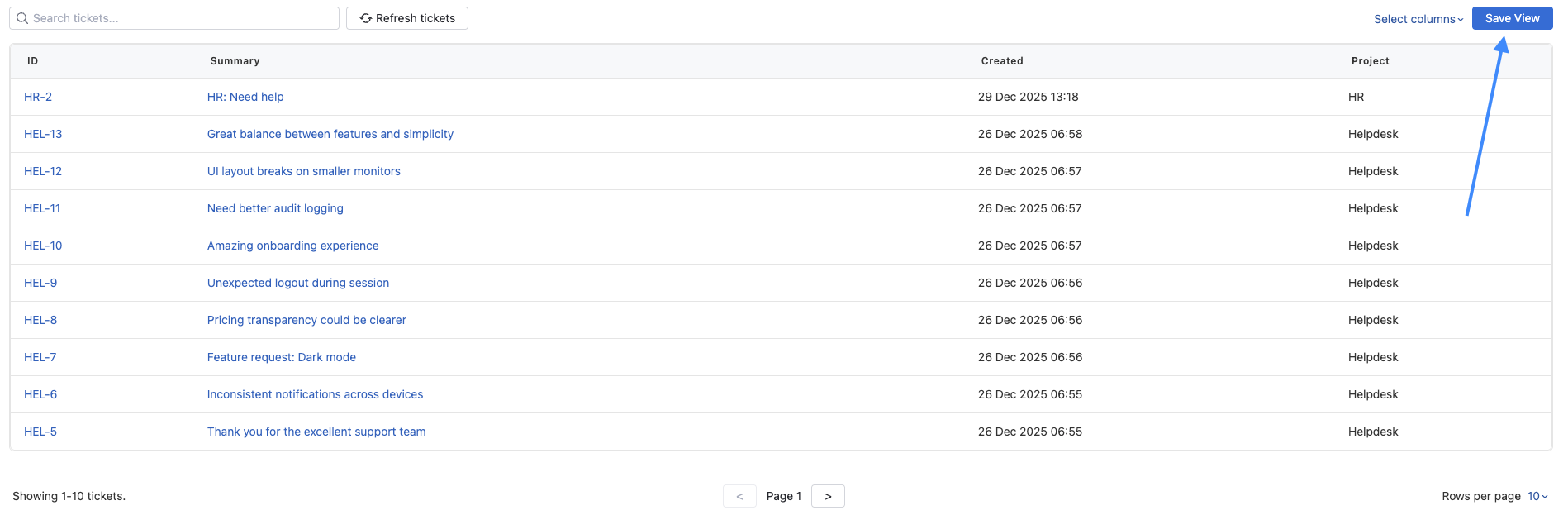 Save View button appears when you've made changes to your view
One Saved View Per User
Currently, you can save one view configuration. If you save again, it replaces your previous saved view. Support for multiple named presets is planned for a future release.
⚙️ More Options
If you're an administrator viewing the reporter tickets view, you'll see an additional More Options menu in the top-right corner.
Available Options
- What's New: View release announcements and feature highlights
- Documentation: Link to this documentation site
- Support: Contact support via email or portal
- Configuration: Quick link to admin configuration panel
Admin-Only Feature
The More Options menu is only visible to YouTrack administrators. Regular reporters won't see this menu.
👥 Which Tickets Are Included?
Custom Ticket Views follows your YouTrack Helpdesk access and account type:
- Helpdesk reporters see the tickets that YouTrack authorizes them to access.
- Agents and standard users see tickets they reported, tickets shared with them through CC, and tickets shared through their customer groups.
- On older YouTrack versions without customer-group support, agents and standard users retain the previous reporter and CC visibility behavior.
Custom Ticket Views does not grant access to tickets. YouTrack permissions and Helpdesk sharing rules remain the source of truth.
🔧 Troubleshooting
Can't Open Reporter View
- Check Access: Verify with your administrator that you have access permissions
- Check Subscription: Ensure the organization has an active subscription or trial
- Check Browser: Try refreshing the page or clearing browser cache
Known Limitations
Tickets Created on Behalf of Another Reporter
For agents and standard users, a ticket created on behalf of another reporter appears in Custom Ticket Views only when the viewing user is also the reporter, a CC recipient, or a member of a customer group the ticket is shared with.
Search Not Working
- Check Search Term: Ensure you're entering valid search text
- Check Network: Verify connection to your YouTrack instance (especially if using a VPN or local network)
- Try Refresh: Click the Refresh button to reload data
Columns Not Appearing
- Check Admin Config: Verify with your administrator that columns are enabled
- Check Column Selector: Ensure columns are checked in the column selector dropdown
- Try Select All: Click "Select all" to show all available columns
Sorting Not Working
- Check Column Type: Most field types support sorting (Description field cannot be sorted)
- Try Clear Sort: Click "Clear Sort" and try again
- Check Network: Verify connection to your YouTrack instance for query execution
Need More Help? Reach out to support@appfero.com or raise a ticket.