

Administration Guide
This guide helps YouTrack administrators configure the Custom Ticket Views application, manage access control, and monitor subscription status.
📦 Installation
- Install the application from the YouTrack Marketplace
- Navigate to Administration → Integrations → Custom Ticket Views Configuration
- Use the included 30-day trial or activate your subscription
- Configure fields and access control as described below
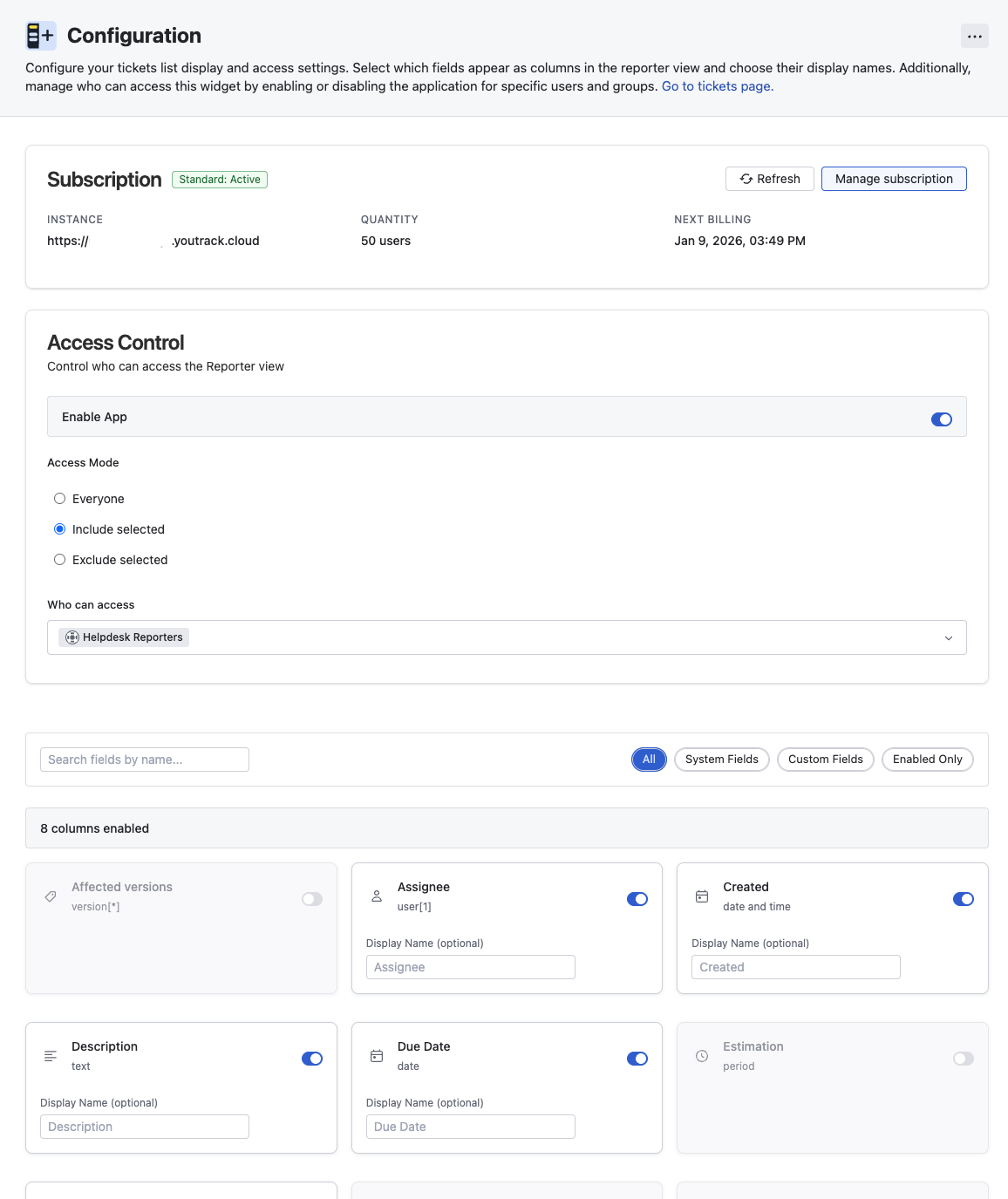
Post-Installation Step Required
To ensure the application works correctly, after installation in Apps, navigate to the Projects tab and select all Helpdesk projects. This step is essential for proper application functionality.
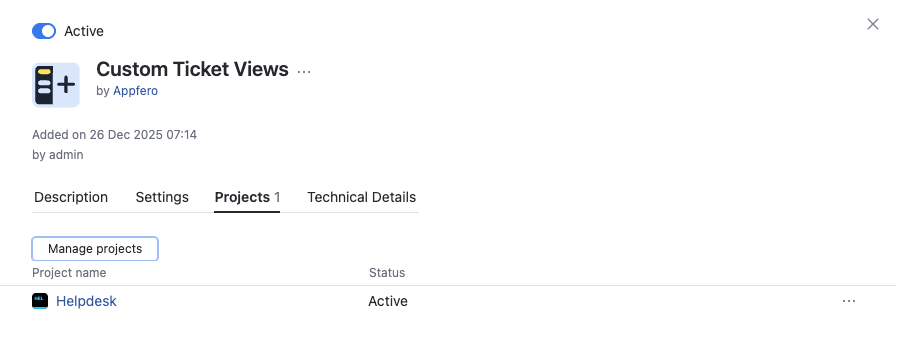 App details - manage projects
Uninstallation
Data Loss Warning
When uninstalling the application, ALL configuration data (including both individual user settings and other configuration data) is permanently deleted by YouTrack. There is no way to restore this data after uninstallation.
This does not apply to plugin updates - your configuration is preserved during updates.
We strongly recommend using the uninstallation option wisely and only when necessary.
🔐 Access Control
Control who can access the Custom Ticket Views with granular access control settings.
Access Modes
- Everyone: All users can access the reporter view (default after enabling)
- Include Mode: Only specified users, groups, or user types can access
- Exclude Mode: All users except specified users, groups, or user types can access
Configuration Steps
- Navigate to the Access Control section
- Toggle "Enable App" to activate the reporter view
- Select an access mode:
- Everyone: No additional configuration needed
- Include: Select users, groups, or user types to grant access
- Exclude: Select users, groups, or user types to block access
- Choose user types (if applicable):
- Standard: Regular YouTrack users
- Agent: YouTrack Helpdesk agents
- Reporters: YouTrack Helpdesk reporters
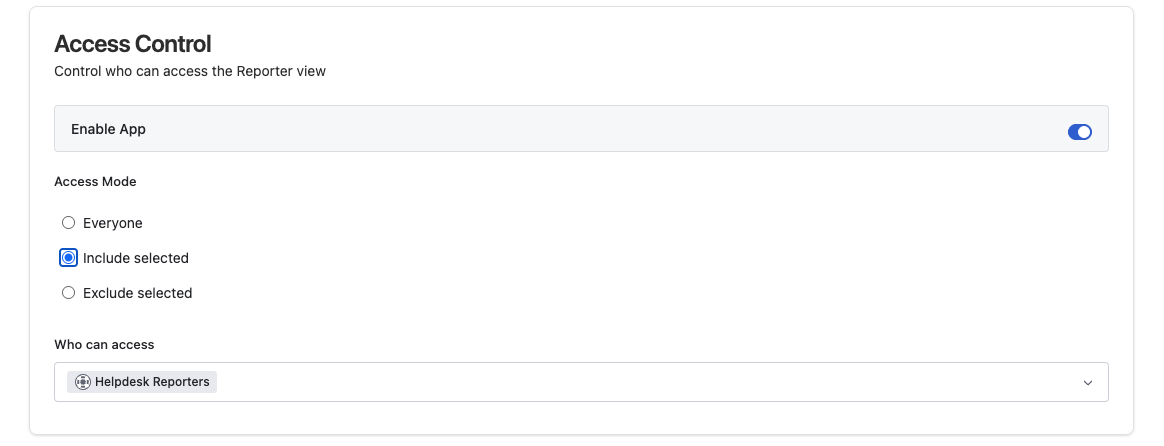 Access control configuration panel with Include mode and selected all users of reporter type
Auto-Save
Configuration changes are automatically saved. You'll see a success notification when changes are persisted.
Access Control Enforcement
Unauthorized users are shown a message that they are not authorized to access the custom reporter view together with a link to the standard YouTrack tickets page.
⚙️ General Settings
Use the General Settings section to control optional reporter capabilities that apply to the whole app.
Enable Exporting Tickets
The Enable Exporting Tickets toggle controls whether reporters can download the current table view as a CSV file.
- Enabled: Reporters see an Export to CSV button in the reporter toolbar, next to Save View
- Disabled: The export button is hidden from reporters
Export behavior
When exporting is enabled:
- reporters can export only the columns currently visible in the table,
- the export uses the current search and sorting state,
- each CSV export is limited to 1000 tickets.
Auto-Save
Changes in General Settings are automatically saved, just like Access Control and Field Configuration changes.
🧩 Field Configuration
The application automatically discovers all available fields from your YouTrack instance, including both system fields and custom fields.
Enabling/Disabling Columns
- Navigate to the Field Configuration section
- Each field is displayed as a card with the following information:
- Field name and type
- Enable/Disable toggle for column visibility
- Optional display name override
- Toggle the switch to make a field available to reporters
- Optionally, provide a custom Display Name to override the default field name
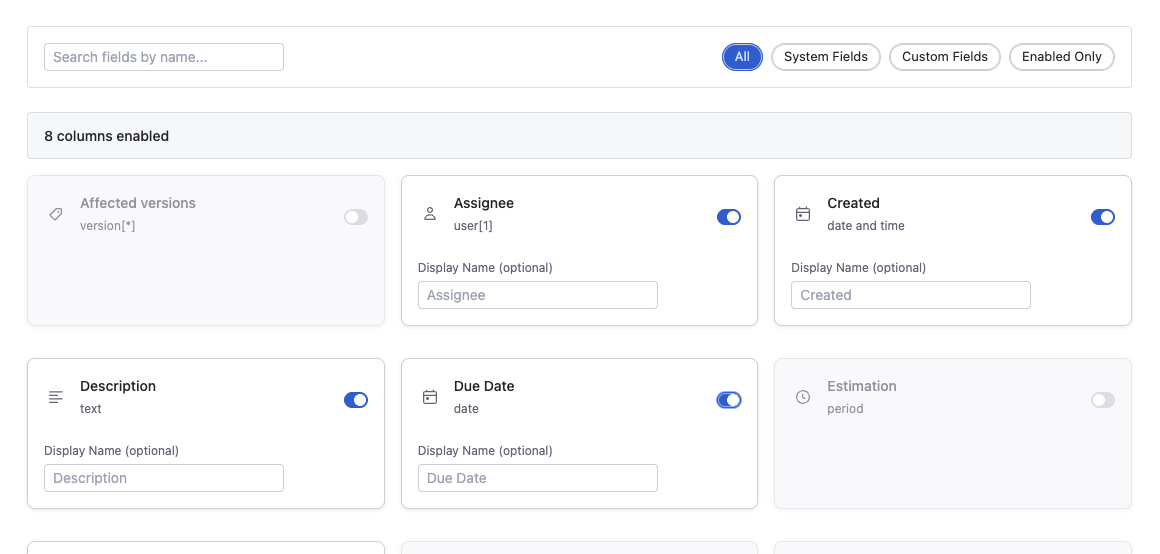 Field configuration panel showing enabled and disabled fields with custom display names
Auto-Save
Configuration changes are automatically saved. You'll see a success notification when changes are persisted.
Default Fields
The application includes these system fields by default (guaranteed to exist in every YouTrack instance):
- ID: Ticket identifier
- Summary: Ticket title/summary
- Created: Creation date
- Project: Project name
Custom fields like "State", "Type", "Priority", and "Assignee" must be enabled manually after installation, as their IDs vary per YouTrack instance.
Searching and Filtering Fields
When working with many custom fields, use the search and filter tools to quickly find the fields you need:
- Search by Name: Use the search box to filter fields by name
- Filter by Type:
- System Fields: Core YouTrack fields (ID, Summary, Created, Project, etc.)
- Custom Fields: Fields created by your organization
- Filter by Status:
- Enabled Only: Show only fields currently enabled as columns
- All Fields: Show both enabled and disabled fields
Quick Workflow
To review currently enabled fields, use the "Enabled Only" filter. This is especially helpful when auditing your configuration
Supported Field Types
The application supports all YouTrack field types with universal formatting. Here's a comprehensive list:
| Field Type | Display Format | Example |
|---|---|---|
| String | Plain text | "High priority" |
| Integer | Number | 42 |
| Float | Decimal number | 3.14 |
| Date | User's date format | 10 Dec 2025 |
| Date and Time | User's datetime format | 10 Dec 2025 14:30 |
| Text | Markdown or plain text | "Detailed description..." |
| Period | Human-readable duration | 2h 30m |
| Enum (single) | Selected value name | "In Progress" |
| Enum (multi) | Comma-separated names | "Bug, Feature" |
| State (single) | State name | "Open" |
| State (multi) | Comma-separated states | "Open, In Review" |
| Version (single) | Version name | "v1.0.0" |
| Version (multi) | Comma-separated versions | "v1.0, v1.1" |
| Build (single) | Build name | "Build 123" |
| Build (multi) | Comma-separated builds | "Build 123, Build 124" |
| Owned Field (single) | Field value name | "Component A" |
| Owned Field (multi) | Comma-separated values | "Component A, Component B" |
| User (single) | User display name with avatar | "John Doe" |
| User (multi) | Comma-separated users list with avatars | "John Doe, Jane Smith" |
| Group (single) | Group name | "Developers" |
| Group (multi) | Comma-separated groups | "Developers, QA" |
Empty values
If a field value is null or an unknown type is encountered, the application displays an empty string.
💳 Subscription Management
The application requires an active subscription (paid or trial) to function. Administrators can monitor subscription status and manage subscription from the admin panel.
Subscription Panel
The Subscription Panel displays:
- Status: Active, Expired, or Trial
- Instance identifier: Identifier of the instance (base url of the instance)
- Quantity: Number of active billing users (affects pricing)
- Next Billing Date: When the subscription renews
- Manual Refresh: Button to force subscription re-validation
- Manage subscription: Button to manage subscription if it is a paid subscription
- Buy subscription: Button to buy subscription if not active paid subscription is present
 Subscription management panel showing active subscription status
Trial Period
- Duration: 30 days from first installation
- Activation: available after installation. No payment details are required during the trial period.
- Limitations: Full feature access during trial (no restrictions)
- Expiration: Reporter view is disabled after trial expires without active subscription
Internet Connection Required
Standard subscription validation requires an active internet connection. For organizations with restricted internet access or air-gapped installations, we offer manual offline licensing as part of the Enterprise annual plan.
🆕 What's New Feature
Administrators can view release announcements and feature highlights directly in the admin panel.
Accessing Release Announcements
- Click the More Options menu (⋮) in the top-right corner of the admin panel
- Select "What's New" to view recent release announcements
- Review the changelog and dismiss when done
- If current app version is not the latest, an "Update available" option appears in the more options menu. Click to go to Manage Apps page.
🔧 Troubleshooting
Configuration Not Saving
- Check Permissions: Ensure you have administrator access to YouTrack
- Check Console: Open browser console (F12) and look for error messages
Fields Not Appearing
- Check Field Discovery: Navigate to admin panel and verify fields are discovered
- Refresh Configuration: Try refreshing the page to reload field discovery
Access Control Not Working
- Verify Access Mode: Ensure access mode is set correctly (Everyone/Include/Exclude)
- Check User Groups: Verify users are in the correct groups
- Check User Types: Ensure user types are selected if using type-based access control
Known Limitations
Agent License Limitation
Users with an Agent license who create tickets on behalf of other users will see those tickets in their Custom Ticket Views. This is expected behavior based on how YouTrack handles ticket ownership and visibility.
Need More Help? Contact support@appfero.com or visit our FAQ page.